
3.3 Client Information
Designed as a number of tabs or sections, this is where the primary information for a client is stored. Users can navigate through each tab in any order to update or view client information.
3.3.1 Client Profile tab
Displays initial fields about the client, including a Case Management utility to identify other staff users involved with this case:
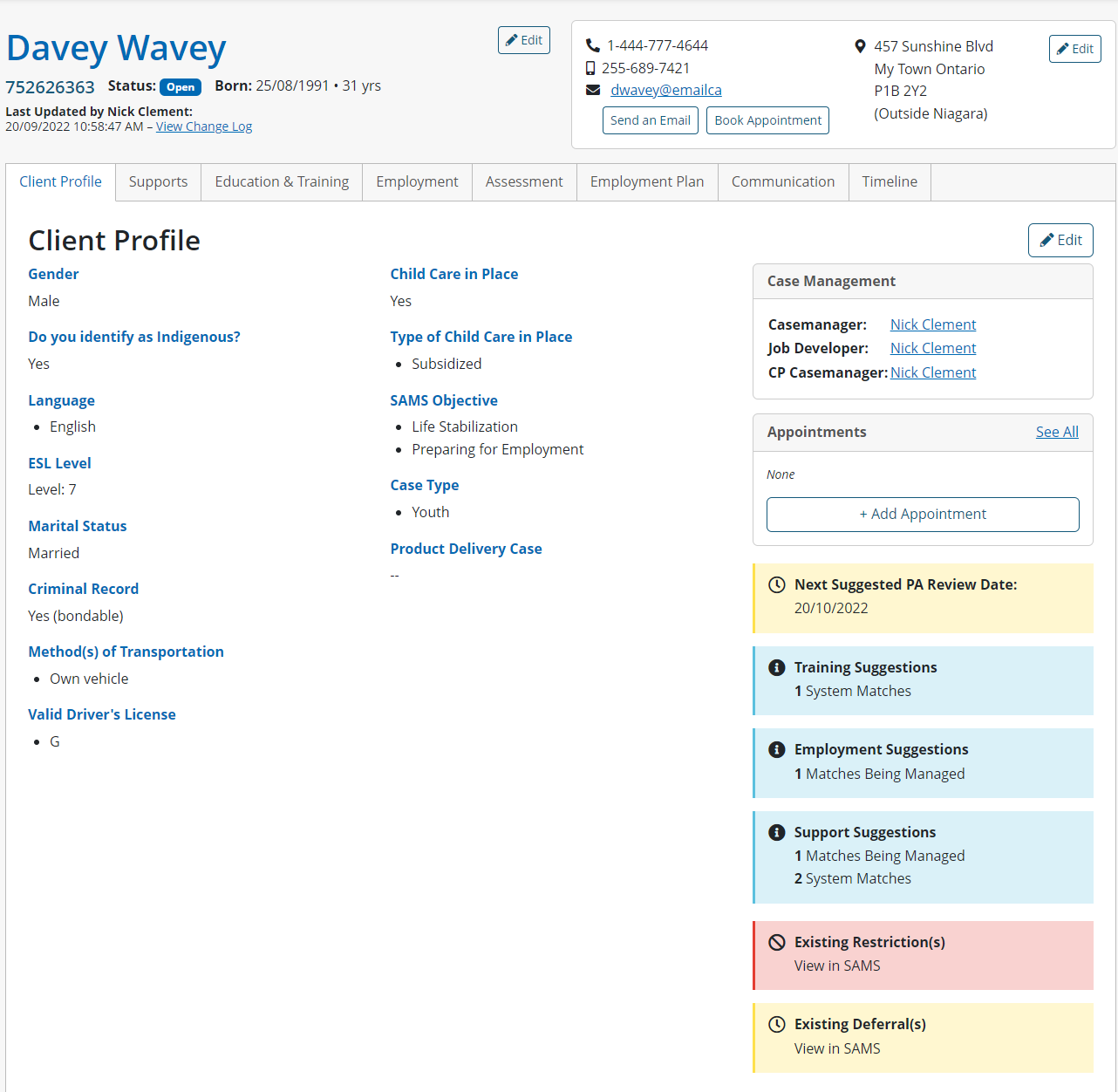

The SAMS Objective can only be changed or updated by completing an assessment, in the client’s Assessment tab.
There are a number of notices found on the Client Profile tab:
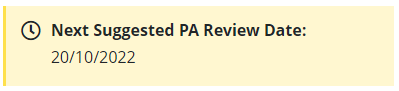
Next Suggested PA Review Date
Date is based on the details found in the Employment Plan tab
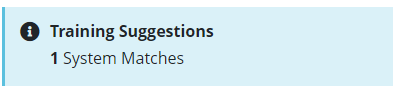
Training Suggestions
Shows matches and matches being managed in the Education & Training tab
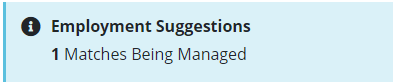
Employment Suggestions
Shows matches and matches being managed in the Employment tab
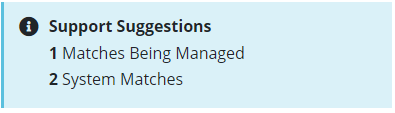
Supports Suggestions
Shows matches and matches being managed in the Supports tab
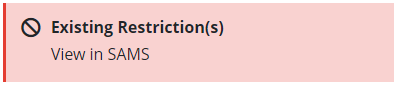
Existing Restriction(s)
Indicates there is a restriction for this client and should be viewed in the SAMs
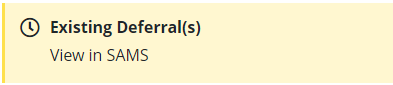
Existing Deferral(s)
Indicates there is a deferral for this client and should be viewed in the SAMs
3.3.2 Supports tab
Displays information about the client as it relates to the matching and tracking of community supports the client is receiving.
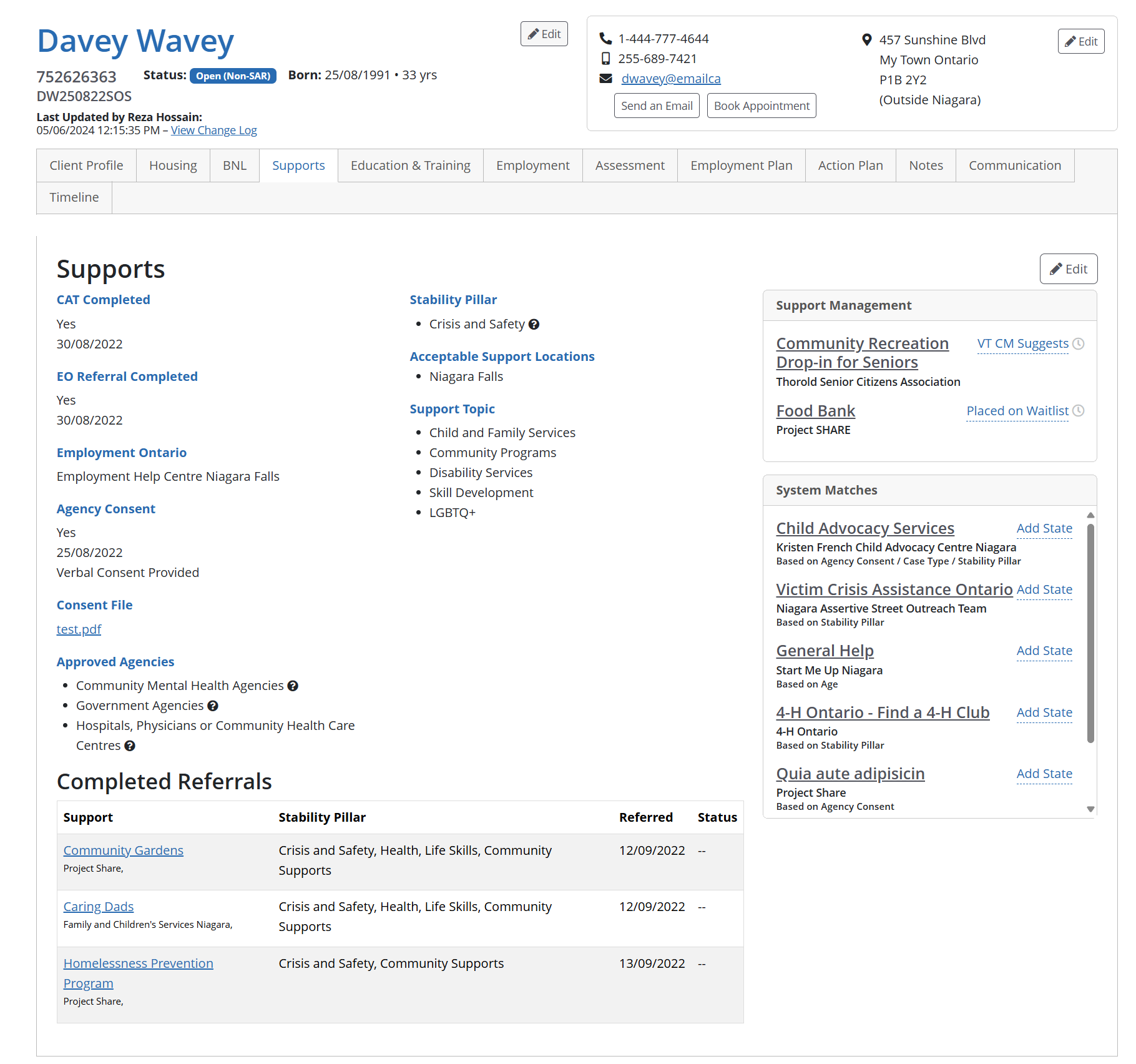
Users have the ability to track key completion dates, for example CAT (Common Assessment Tool), EO Referrals and Agency Consent.
Should the client provide Agency Consent, staff can optionally attach consent files/documents and indicate the list of approved agencies the client has consented to sharing their information with.
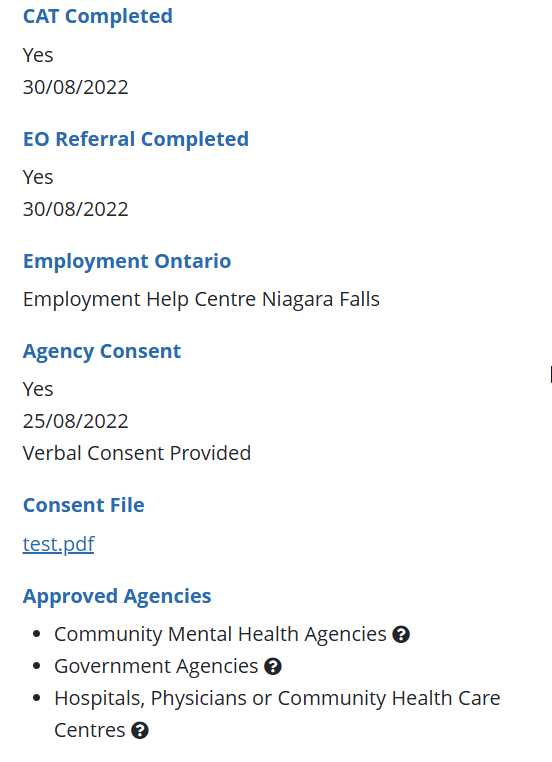
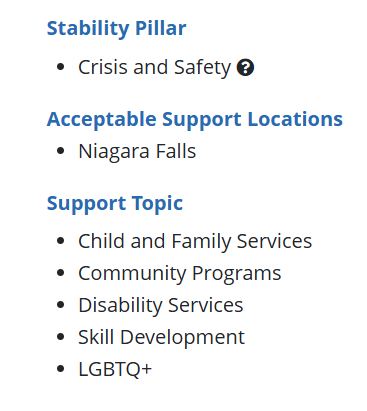
Users can also track key details to assist with the matching of clients to supports.
This includes the Stability Pillar(s) , Acceptable Support Locations, and the Support Topic(s) that best relate to the clients needs.
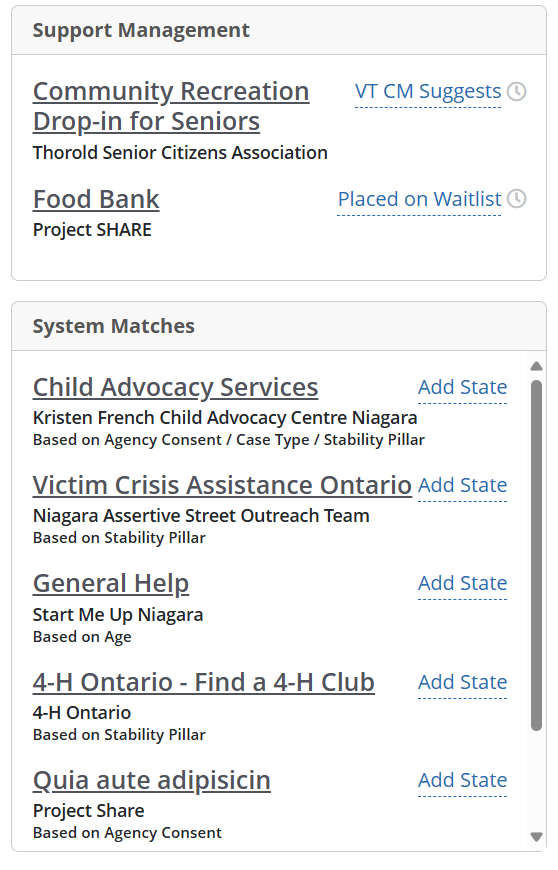
The System Matches and Support Management utilities helps staff see support suggestions in the system, based on similar criteria in the case profile and support profile.
Underneath each system match, users will see why the system is making the suggestion for this Support.
Similar to the Job Management utility, users may be able to set, change or remove a support status for a client, depending on their user group permission.
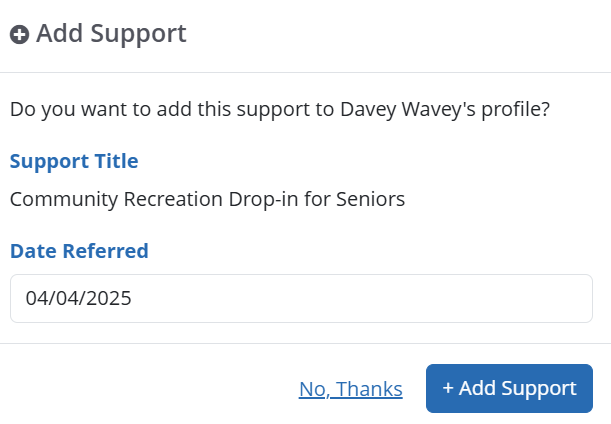
Once a client is Referred to a support it will be tracked in the Completed Referrals section at the bottom of the tab.
Here staff are able to view a list of all the support referrals made and when they were referred. They can also track the current Status for these supports to indicate if the client is still receiving this support (i.e. Ongoing), or if they have completed the support and when.
3.3.3 Education & Training tab
Displays information about the client as it relates to their education, acceptable training locations, registrations or certification, and any system-related training courses this client has completed.
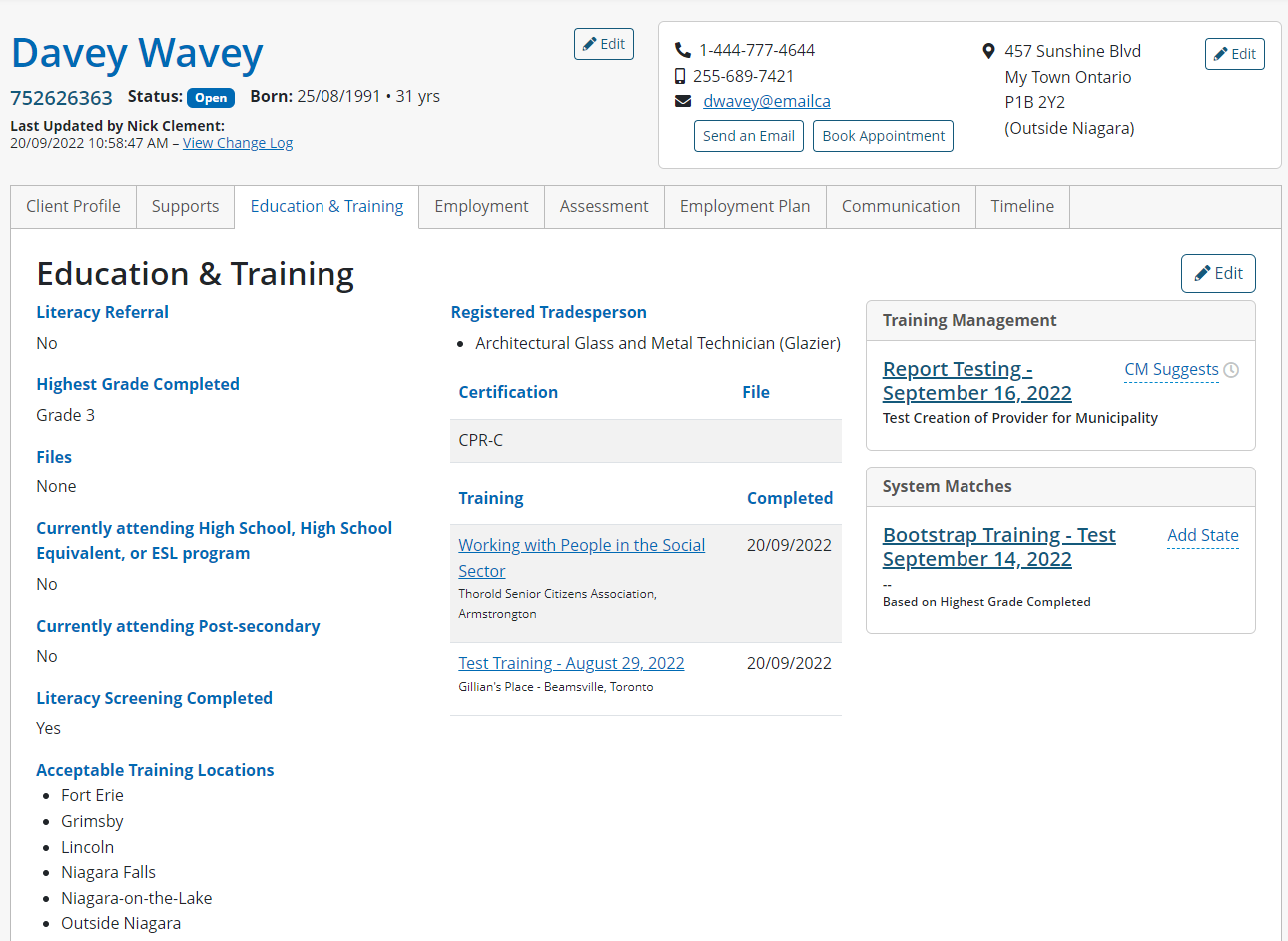
Administrators manage options for Registered Tradesperson and Certifications in Admin Tools.
Staff can upload one or multiple files related to a client’s education, such as a copy of their degree, diploma, or course enrollment.
They can also upload a file to a specific certification within the system.

The Training Management utility helps users manage and set statuses for training courses. Depending on permissions, users may be able to set, change or remove a training status.
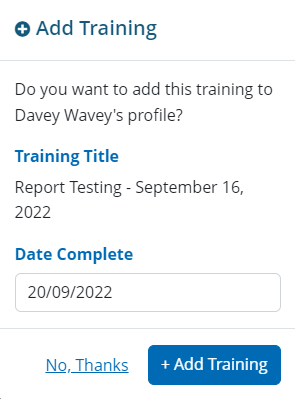
When COMPLETED is set as the status, the system will prompt the user to add this training course to the case profile by indicating the date completed.
When a date is set, users can click ADD TRAINING to add the course to the Training Completed section of the client’s Education & Training tab.
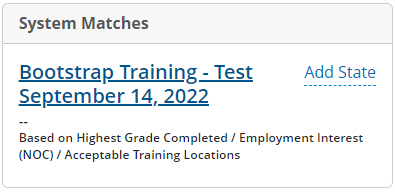
The System Matches utility helps staff see training suggestions in the system, based on similar criteria in the case profile and training course profile.
Underneath each system match, users will see why the system is making the suggestion for this training course.
Similar to the Training Management utility, users may be able to set, change or remove a training course status for a client, depending on their user group permission.
To see the complete matrix of available training course statuses for each user group, visit this article: Training Course Statuses Available
3.3.4 Employment tab
Displays information about the client as it relates to their employment status and additional details about their employment profile, such as: resume files, Employment Ontario office, consent on file, availability, acceptable job locations, and employment experience and interests.
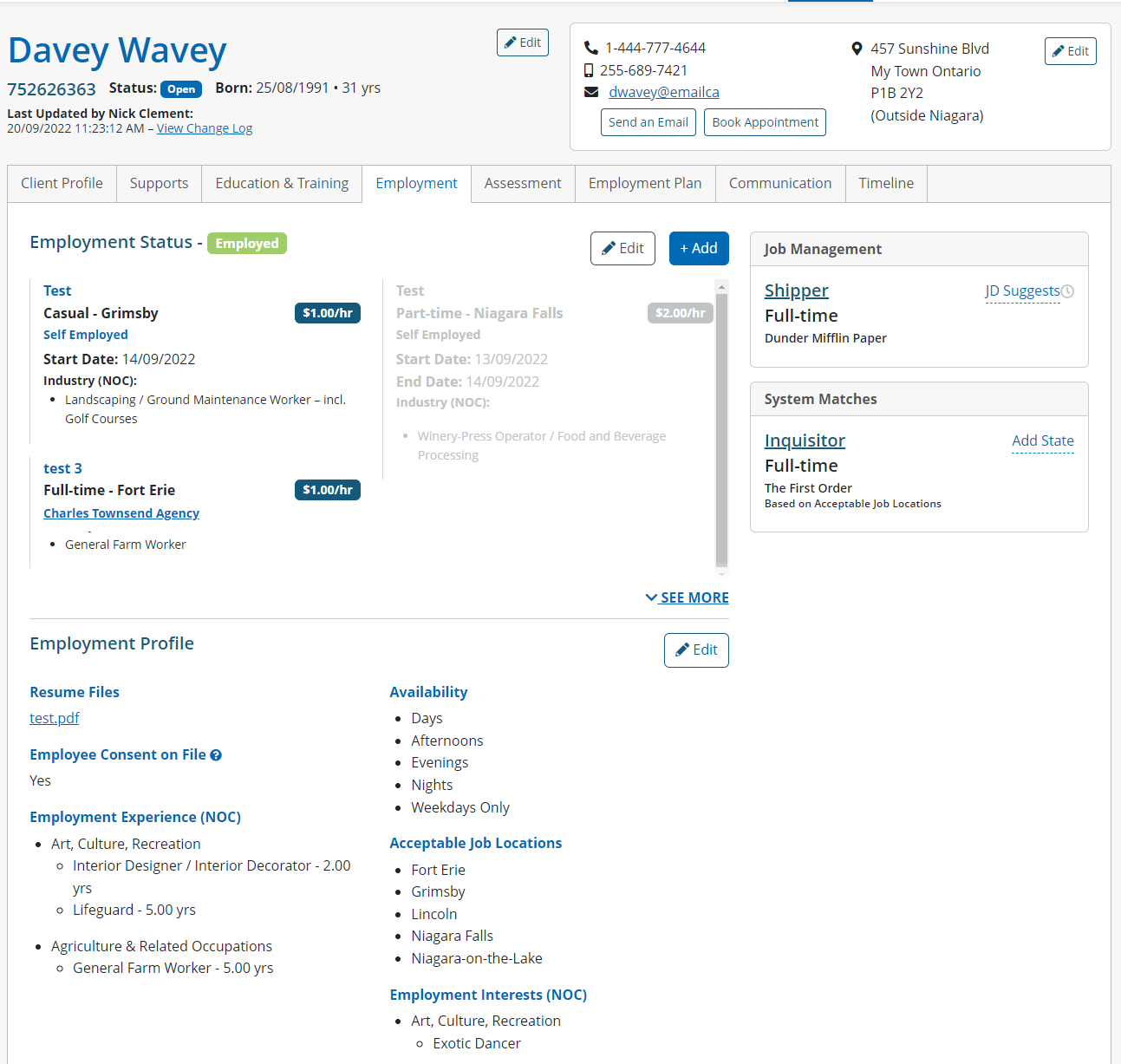
The Employment Status section of the Employment tab shows the current status of this client, based on employment records, but clients can only have one status at a time;

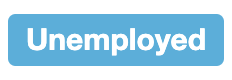
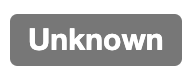
An employment record must be added to a client’s profile in order to change the status label.
Visit Adding Employment Records for more information.
The Employment Profile section of the Employment tab shows additional employment information to help staff have a better understanding of the client, their experiences and job interests.
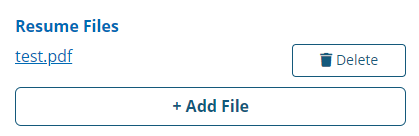
Users can upload and store files, such as resumes or cover letters, for clients.
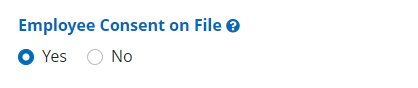
Although signed consent forms are not stored within the AMS, users can see if a client has given consent to share their personal information with employers and/or work with an outside agency.
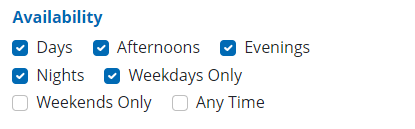
Helps indicate when a client is available to work, based on different times of the day / week.
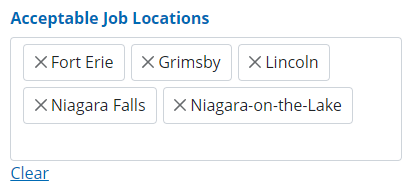
Indicates areas or regions within the municipality, or possibly outside the region, a client is willing to travel to in order to obtain employment.
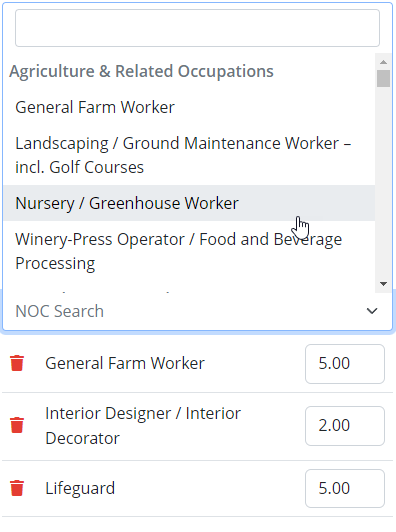
List is based on a selection of National Occupational Classification (NOC) codes.
Users select any of the NOCs available, including the years of experience, for the client to gather relevant information for the matching algorithm for jobs in the AMS.
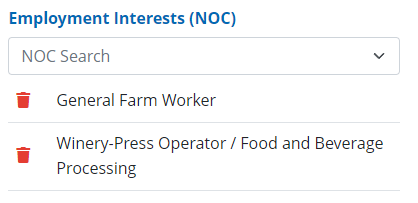
List is based on a selection of National Occupational Classification (NOC) codes.
Users select any of the NOCs available for the client to gather relevant information in order for the matching algorithm to make sound suggestions for jobs, based on their client’s interest(s).
The Employment tab also has a Job Management utility to help users manage and set statuses for job opportunities. Depending on permissions, users may be able to set, change or remove a job status.
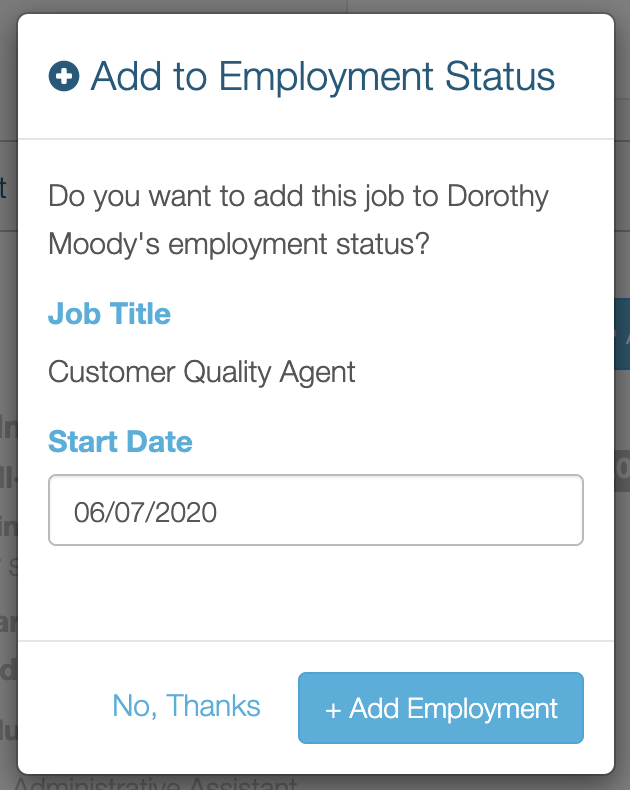
When HIRED is set as the status, the system will prompt the user to add this employment record to the case profile by indicating the date completed:
When a date is set, users can click ADD EMPLOYMENT to add the job to the Employment Status section of the client’s Employment tab.
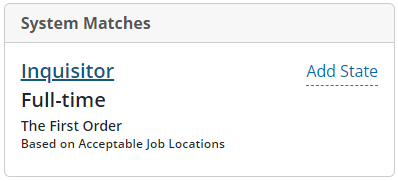
The System Matches utility helps staff see employment suggestions in the system, based on similar criteria in the case profile and job post profile.
Underneath each system match, users will see why the system is making the suggestion for this job opportunity.
Similar to the Job Management utility, users may be able to set, change or remove a job status for a client, depending on their user group permission.
To see the complete matrix of available job statuses for each user group, visit this article: Job Statuses Available
3.3.5 Assessment tab
Built within the application, the assessment questionnaire takes into account the situation of the client as it relates to personal supports, employment, skills and attitudes and behaviours.
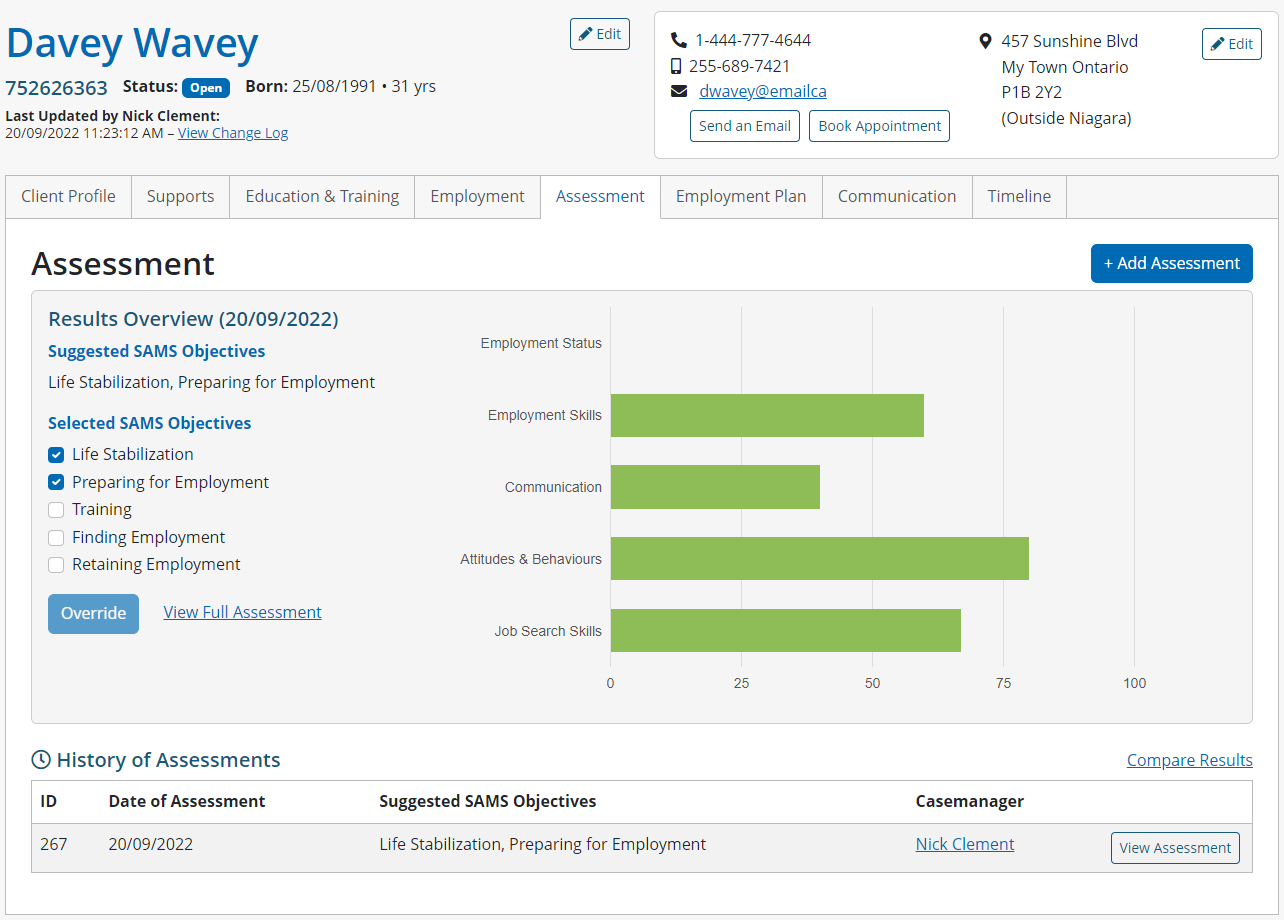
To create a new assessment, users can click START ASSESSMENT, or +ADD ASSESSMENT, and fill out all the answers in the questionnaire.

Users cannot submit a partial assessment or save a draft of an assessment.
Once submitted, the system will generate a graph and suggest the SAMS objective, based on the results of the assessment. Depending on the results, staff can decide to override the SAMS suggestion and can set the objective(s) for this client.
When an objective(s) is determined for the client, the system will update the SAMS Objective field found on the Client Profile tab.
By clicking VIEW ASSESSMENT users will see the results of the assessment on one screen, including the graph and responses to the assessment questions.
The History of Assessments list, shows all the assessments completed for this client within the AMS, including the date, suggested SAMS objective and the user who completed the assessment.
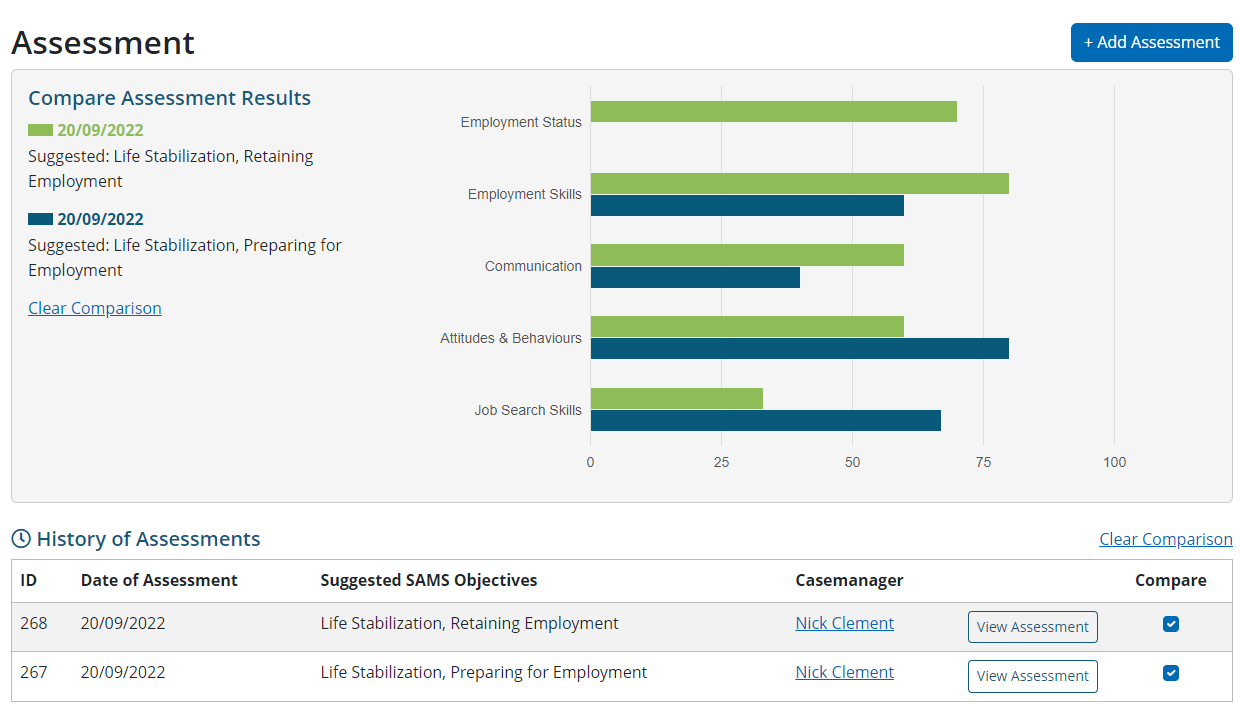
Users can also click compare assessment results, by clicking Compare Results and checking off the assessments to compare. The chart will update to show the results of the selected assessments, by using different colours, with each colour representing a different assessment:
3.3.6 Employment Plan tab
This section is an assistive tool for users to help create the SAMS Outcome Plan for the client.
EIS is used for the initial, 30-Day plan generated in the AMS
Ongoing is used as updated plans are generated in the AMS
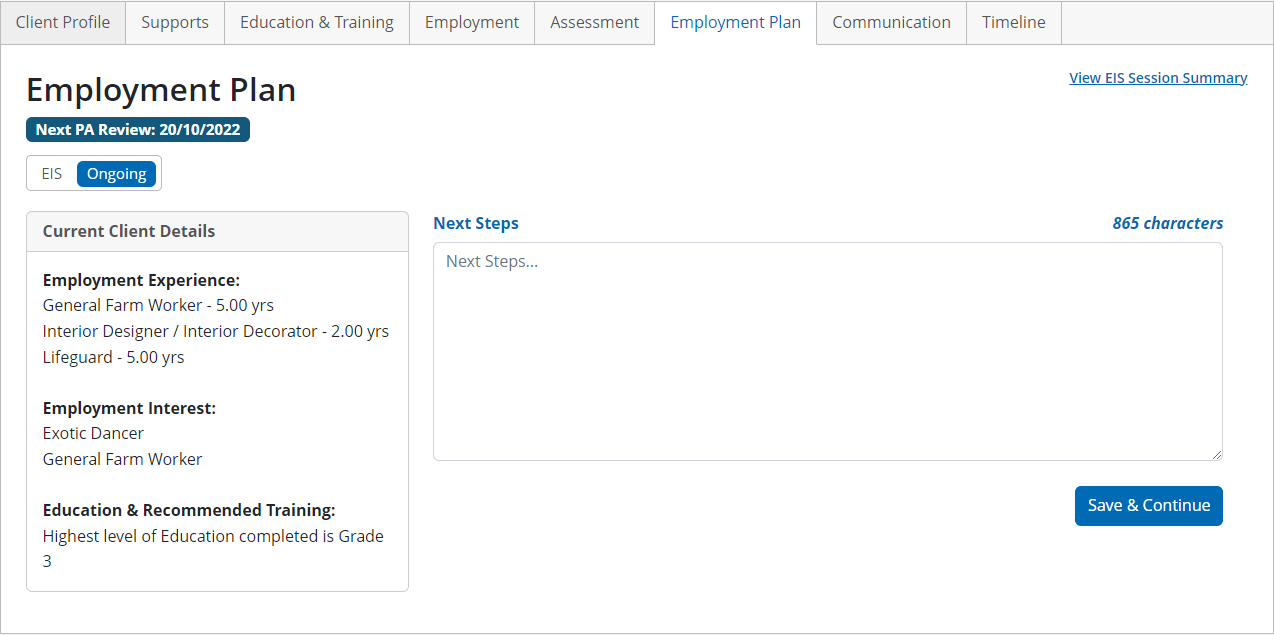
Both plans include the Current Client Details, which lists a handful of NOCs for Employment Experience and Employment Interests, and the client’s highest level of education completed, all based on details found throughout the case profile.
The Employment Plan does not save the generated notes for the Outcome Plan – It simply assists staff in creating the Outcome Plan.
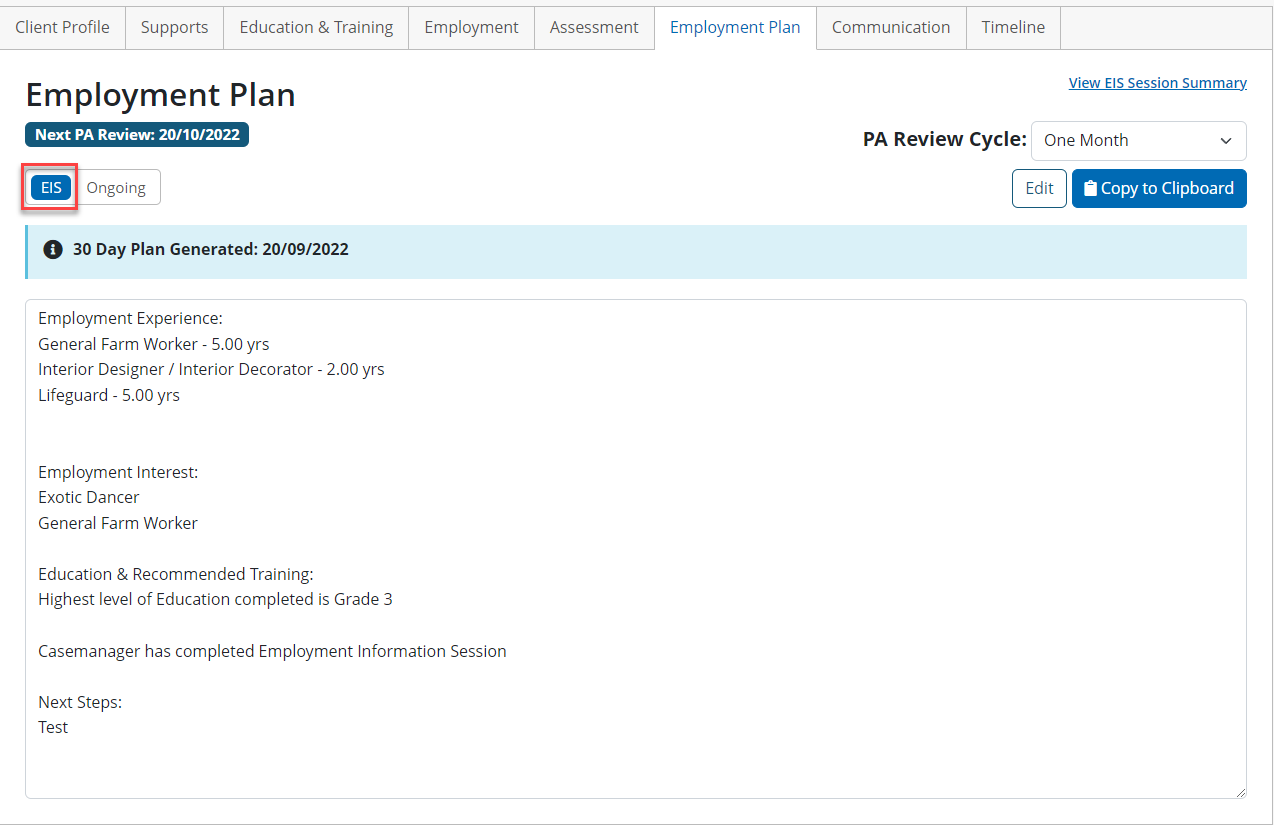
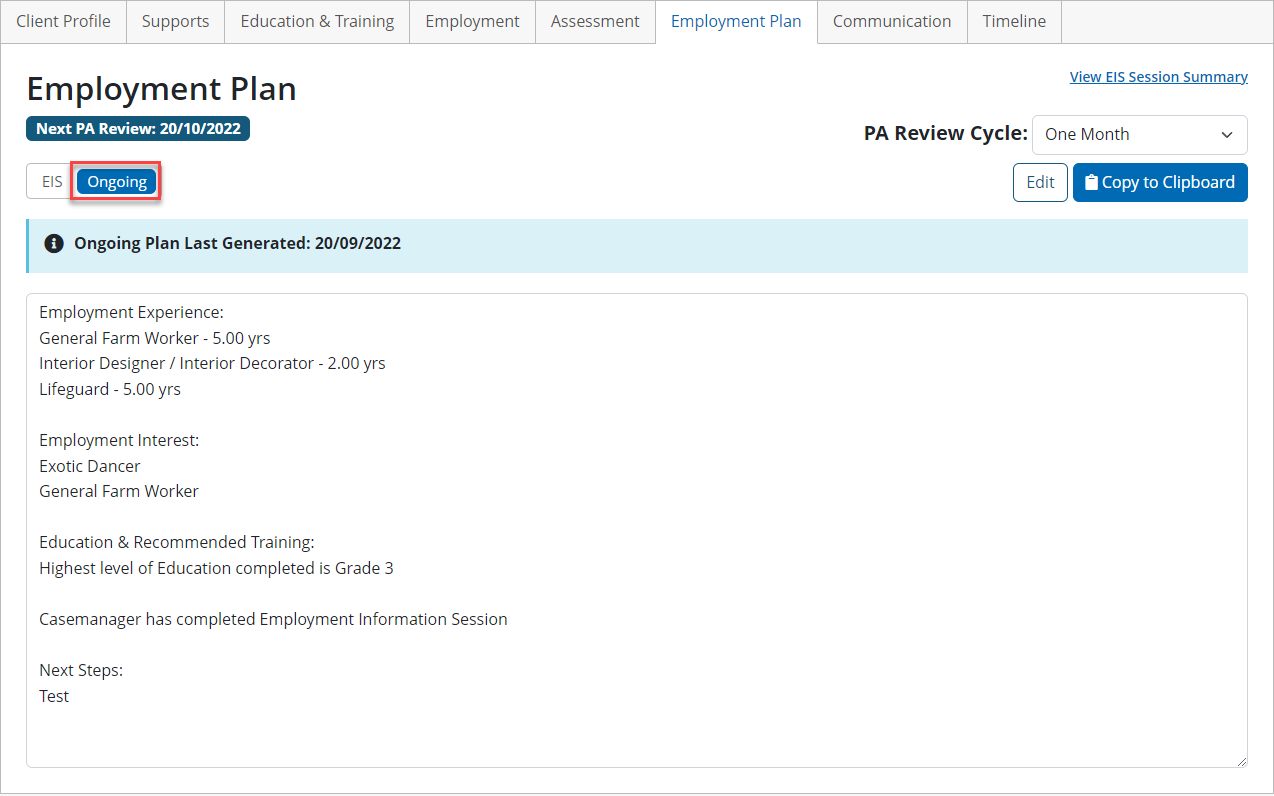
Once generated, staff can set the PA Review Cycle for this client, in the following intervals:
One Month | Three Months | Four Months | Six Months |
|---|
Depending on the interval, the Next PA Review date will be displayed based on the Plan Last Generated date in the AMS:
The Last Plan Generated date for a client was on: | 13 / 02 / 2019 |
|---|---|
If One Month is set, the Next PA Review date will be… | 13 / 03 / 2019 |
If Three Months is set, the Next PA Review date will be… | 13 / 05 / 2019 |
If Four Months is set, the Next PA Review date will be… | 13 / 06 / 2019 |
If Six Months is set, the Next PA Review date will be… | 13 / 08 / 2019 |
3.3.7 Communication tab
This section of the case profile is used to track conversations and discussions with the client, in the form of phone calls and emails.

Users can manually add telephone conversations with the client through the +ADD ENTRY button. This will prompt the user to add information about the phone call, including the outcome of the call.
Users can also send emails directly to clients through the COMPOSE EMAIL button, which brings them to a screen to create the email message. Files can be attached to system generated emails, and users can preview the email before sending to the client:
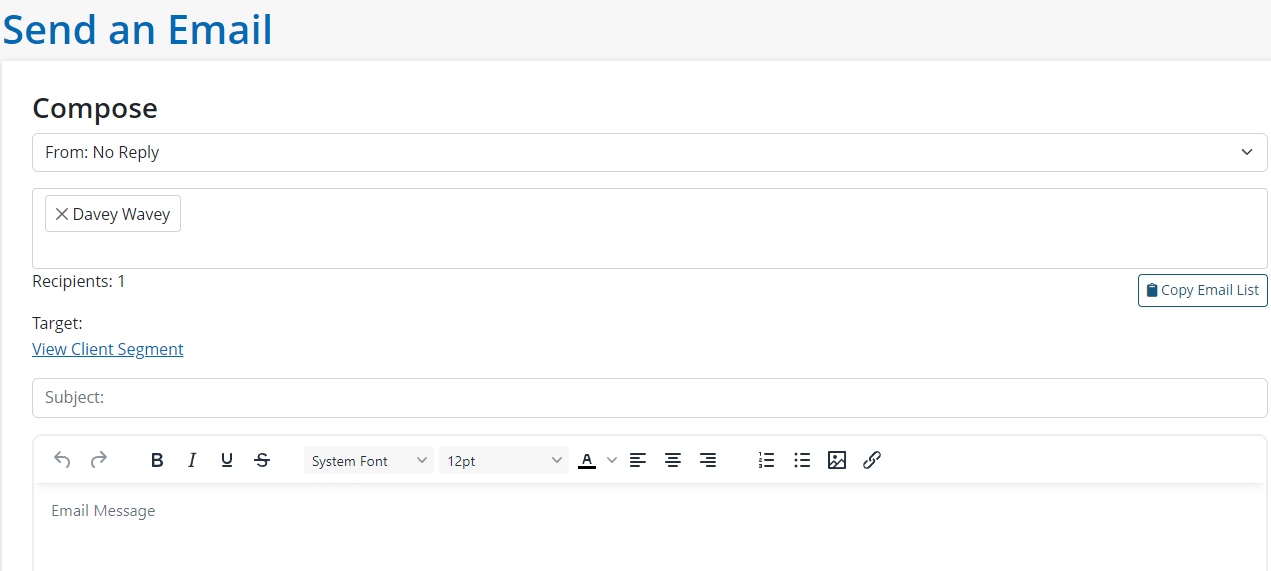
Once the email is sent to the client, the system will automatically log this action in the Communication tab. Users can view details of phone or email entries by clicking the Subject to open a modal window to view the entry details:
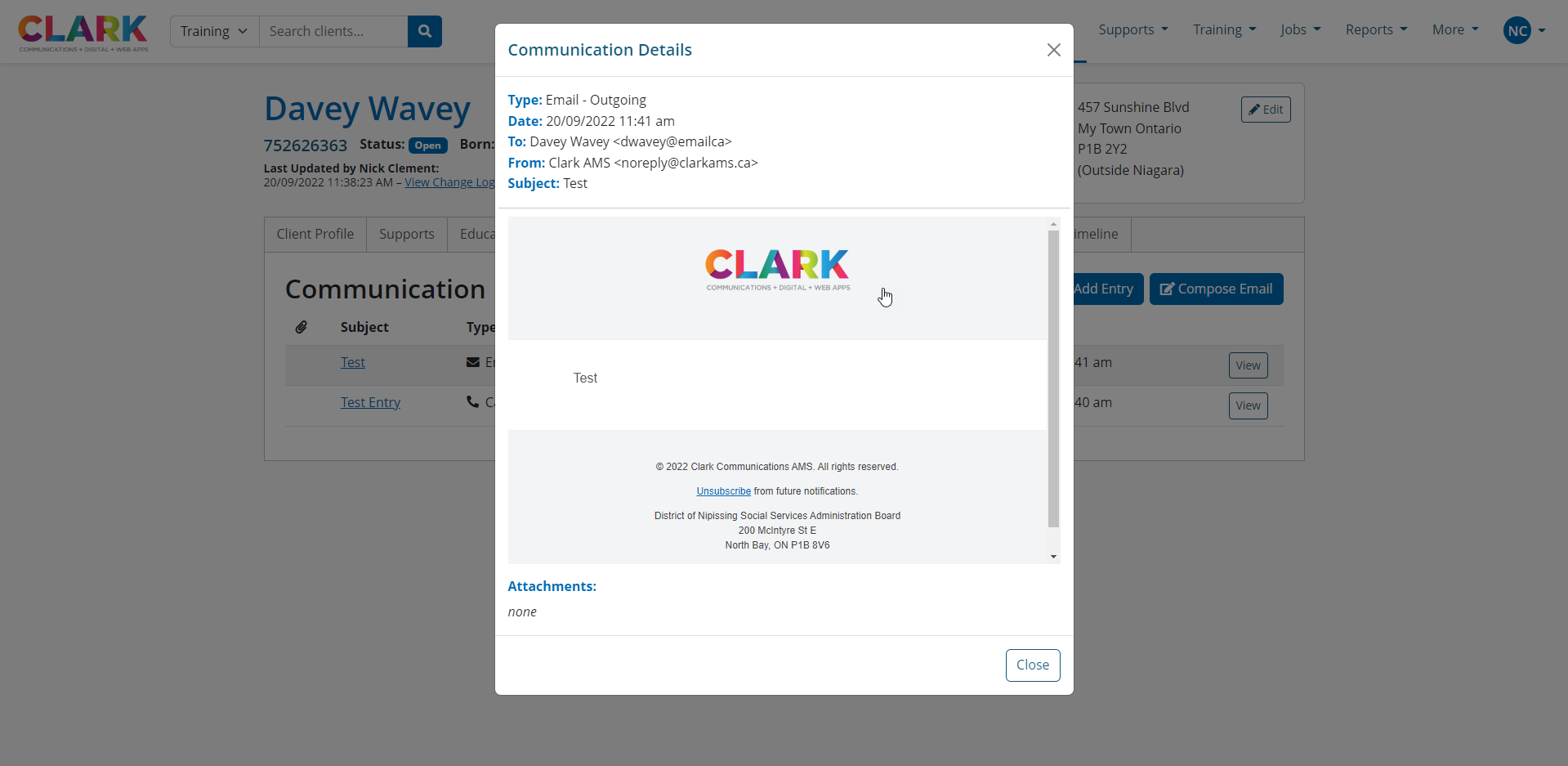
Hovering over the Opened label in the email entry details modal will display a tooltip with a date/time stamp of when the client opened this email.
3.3.7 Timeline Tab
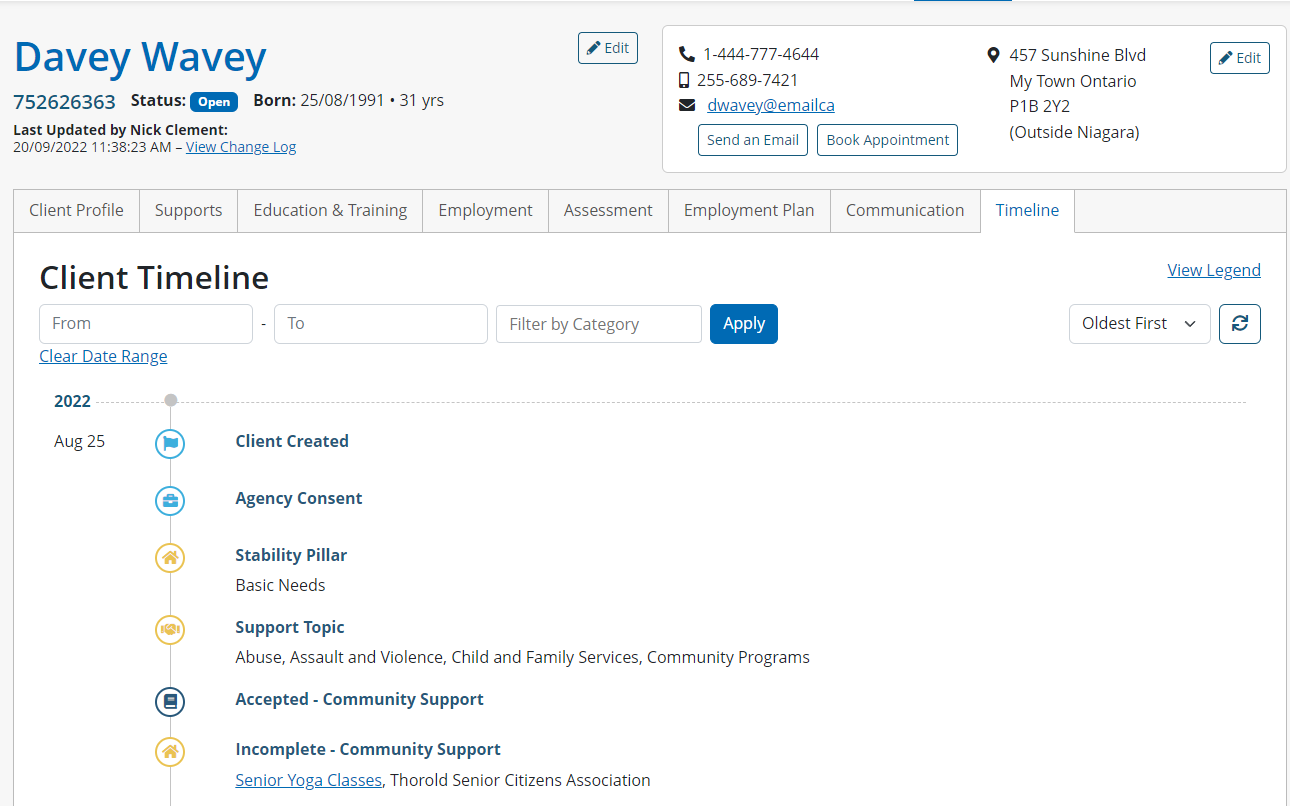
The client timeline has been created to provide a visual graph of the client's history and accomplishments via ‘milestones’. These milestones are organized by the date they occurred and are classified by specific icons. These icons can fall into multiple-coloured categories.
3.3.7-1 Timeline Legend – Colour Categories and Icons
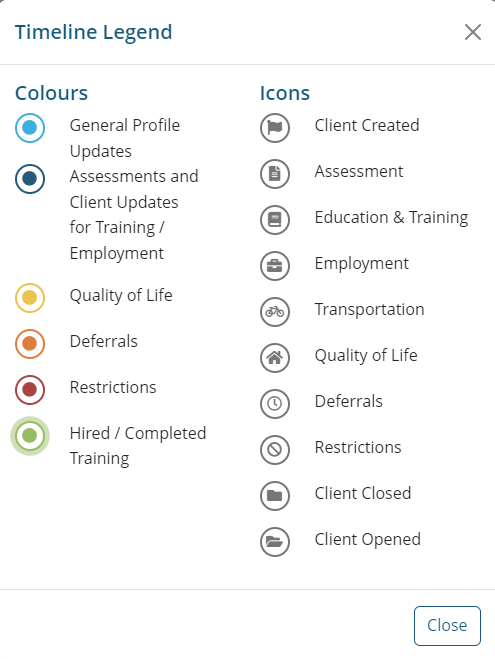
Based on updates within the client's profile, the timeline will display these accomplishments via Icons. Each icon can have one or multiple client profile fields that trigger it to appear on the timeline. Based on the field the icon will have a unique colour to distinguish it.
In the chart below the possible colours for icons is displayed on the left. On the right are the icons and the fields that trigger each icon. Each field has a colour displayed beside it to indicate what they belong to.
COLOUR | ICONS |
Light Blue
| Flag
|
Dark Blue
| File
|
Orange
| Book - Education and Training
NOTE: If a training course is removed from the clients Education and Training tab, it will also be removed from the timeline. |
Red
| Briefcase - Employment
NOTE: If a record of employment is removed from the clients Employment tab, it will also be removed from the timeline. |
Yellow
| Bicycle - Transportation
|
Green
| House – Quality of Life
|
| Clock - Deferral
|
| Restricted Sign
|
| Closed Folder
|
| Open Folder
|

3.3.7-2 Timeline Filters

The client timeline is equipped with multiple filters in order to hone in on key milestones and get an understanding of what areas the client may need assistance in.
Date Range: Staff can input a From and To date to focus on milestones that occurred within a specific date range. To clear both date fields, staff can click Clear Date Range.
Category: Staff can filter by one or multiple category filters to view milestones associated to the respective category. Each category contains the following milestones:
Quality of Life | Education & Training | Employment | General |
|
|
|
|
Oldest First/Newest First: Organizes milestones by oldest milestone first or newest milestone first.
Refresh – button: If staff have made changes within any of the client profile tabs, they can hit the refresh button in order for these changes to display on the timeline, without having to refresh the entire page.