
Client IDs - Addition of Non-SAR Clients
To assist with tracking clients who are non-social assistance recipients (Non-SAR), we have developed a unique Client ID that can be attributed to a new client created in the system or to a pre-existing SAMS client.
Creating a new Non-SAR Client
Staff can create a Non-SAR client in one of two ways:
Clicking the +Add Client button on the client listing page
Clicking Clients in the navigation, then selecting Add New from the menu
On the first page of the Add New Client wizard, staff can click the checkbox for Non-SAR Client. After clicking this, staff can manually populate the client's personal information and contact details.
First Name, Last Name, and Date of Birth fields are required in order to move to the next step.
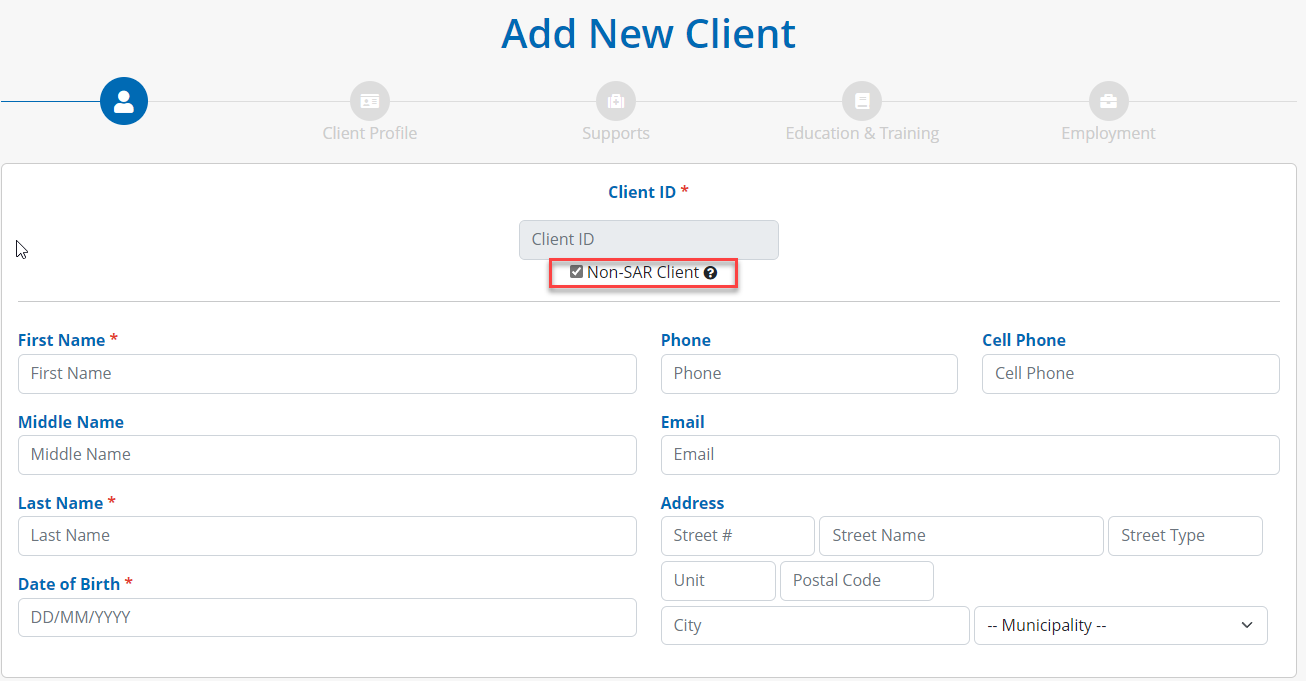
The Client ID will automatically populate using aspects of the required First Name, Last Name, and Date of Birth fields. A random, system-generated alpha-numeric code will be appended at the end of the Client ID to ensure this is a unique ID in the system.
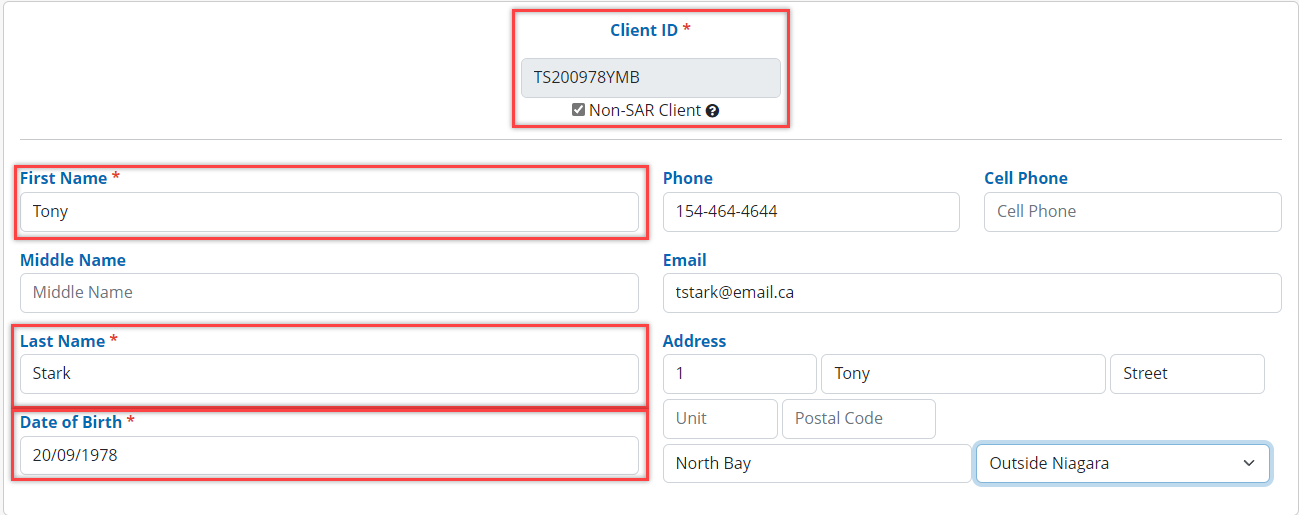
Staff can then proceed to complete the other step and areas of the Case File during this wizard.
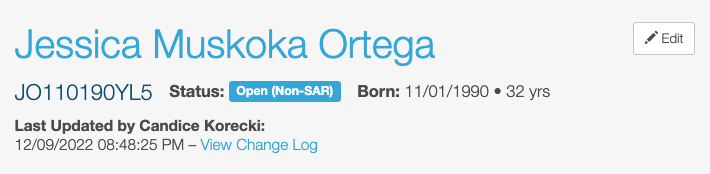
Once the new client has been created, staff can view the unique Client ID in the Case File, which is directly beneath the client’s name. The client’s Status will be set to Open (Non-SAR).
Adding a Client ID to an existing client
With the addition of the Client ID, the Asset Management System can continue assessing, tracking, and assisting clients regardless of the program area in which they are receiving services.
If a client is no longer open/active in SAMS, they may still be receiving support from their caseworker, and a Client ID can be added to their Case File.
To do this, staff can navigate to the Case File and click the Edit button beside the client’s name.
If the Edit button is not visible, the user may not have the appropriate user group permissions.
Within the Edit screen, staff can set the Non-SAR Status to “Open” which will automatically set the Product Deliver Case Status to “Closed”

Note: A client cannot be Open in both program areas at the same time.
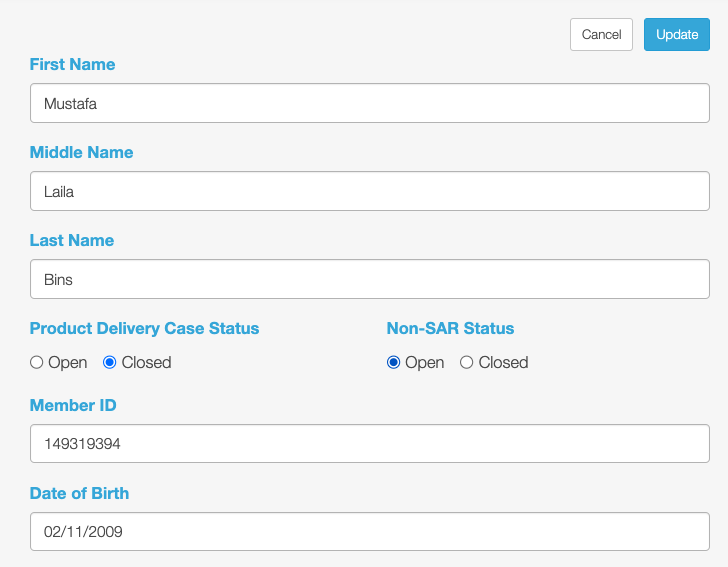
When staff clicks the Update button, the Case File will update to show a new Status of Open (Non-SAR) and their unique Client ID, beneath their Member ID.
Note: The Client ID cannot be altered or changed by any user group in the system. If the client’s details change, such as a name change, the ID will remain unchanged, based on the ORIGINAL information populated.
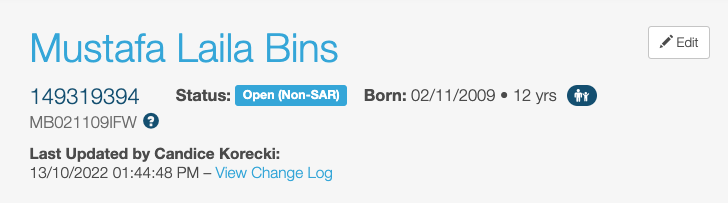
New Case File Status Badges (examples)
Clients with a Product Delivery Case Status set to Open will have an OPEN badge:
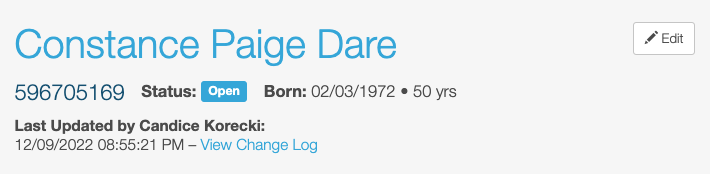
Clients with a Non-SAR Status set to Open will have an OPEN (NON-SAR) badge:
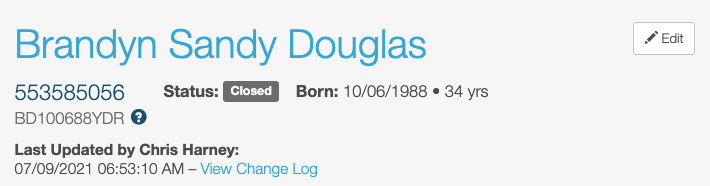
Clients with a Product Delivery Case Status and Non-SAR Status set to Closed will have a CLOSED badge:
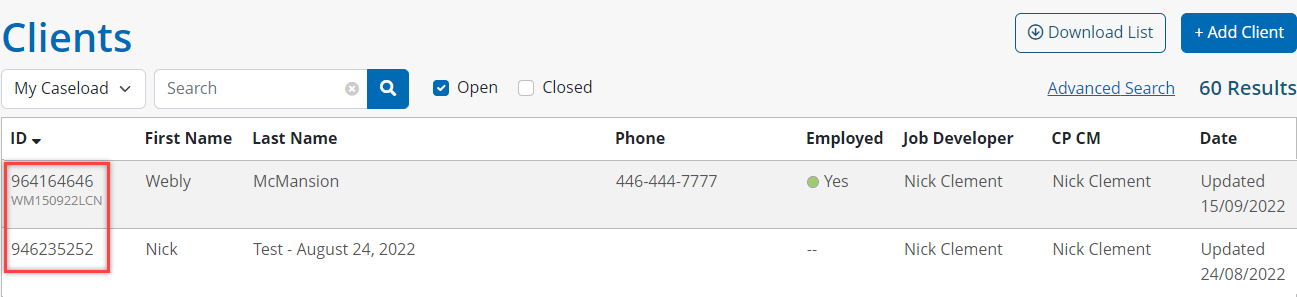
Clients Listing Page – ID Display
Client ID and Member IDs
On the Client listing page, staff may see both the Client ID and/or Member ID for each client.
Client Advanced Search
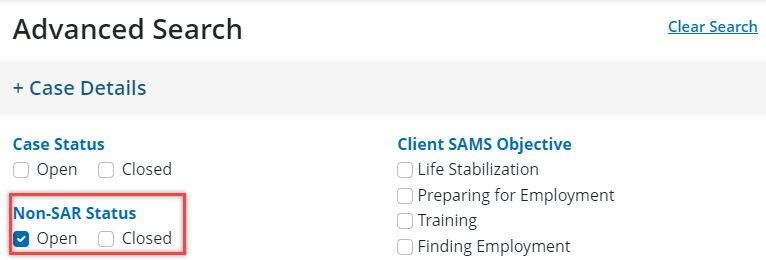
Staff can use the filters of the Client Advanced Search for all Non-SAR clients in the system:
Under the Case Details section, select ‘Open’ or ‘Closed’ for the Non-SAR Status to filter the client list:
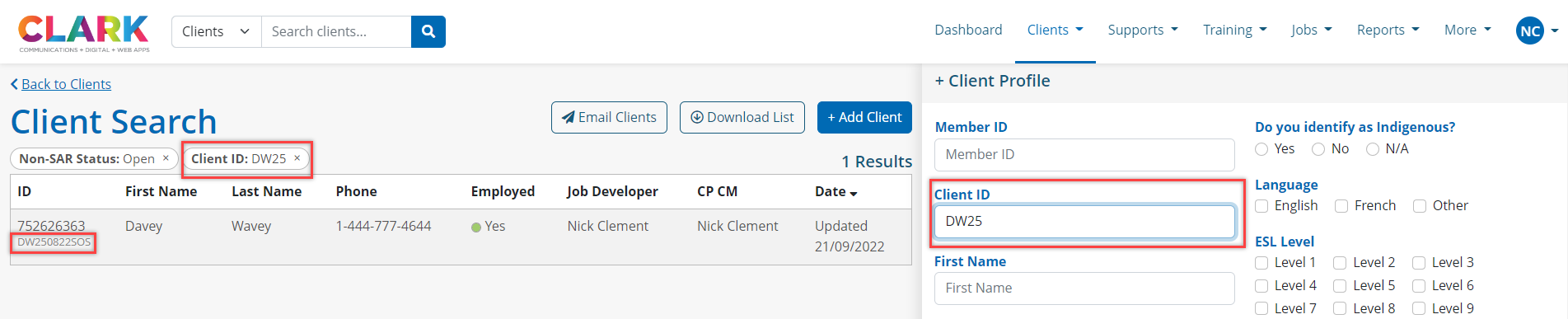
Under the Client Profile section, typing a complete or partial Client ID to filter the client list:
Non-SAR Clients in the Jobs and Training Systems
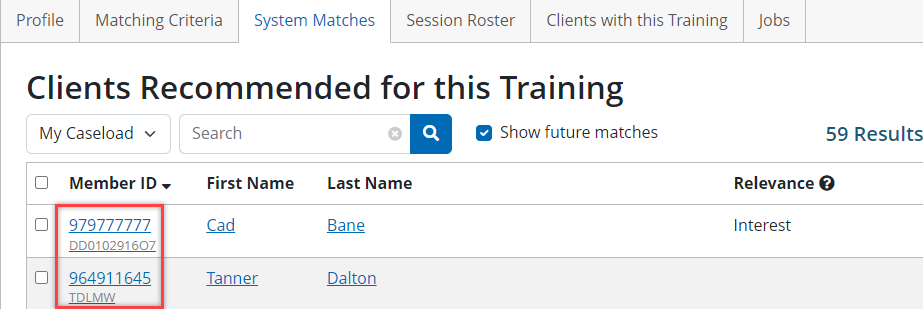
Throughout the various tabs of either a job or course profile, staff will now see the Member ID and/or Client ID of clients. Similar to the Client listing page, the Member ID will always be listed above the Client ID, if applicable:
New Filter in Reports
Additional filters have been included on all system reports to filter statistics and metrics for:
Filter Name | Filter Purpose | Report |
|---|---|---|
All Active Clients | Filter for all active clients in the system | Client Pool |
Active SAMS Clients | Filter for only active SAMS clients | Client Pool |
Active Non-SAR Clients | Filter for only active Non-SAR clients | Client Pool |
All Clients | Filter for all clients in the system | All reports, except Client Pool |
SAMS Clients | Filter for all SAMS clients in the system | All reports, except Client Pool |
Non-SAR Clients | Filter for all Non-SAR clients in the system | All reports, except Client Pool |