10.2 Add New File

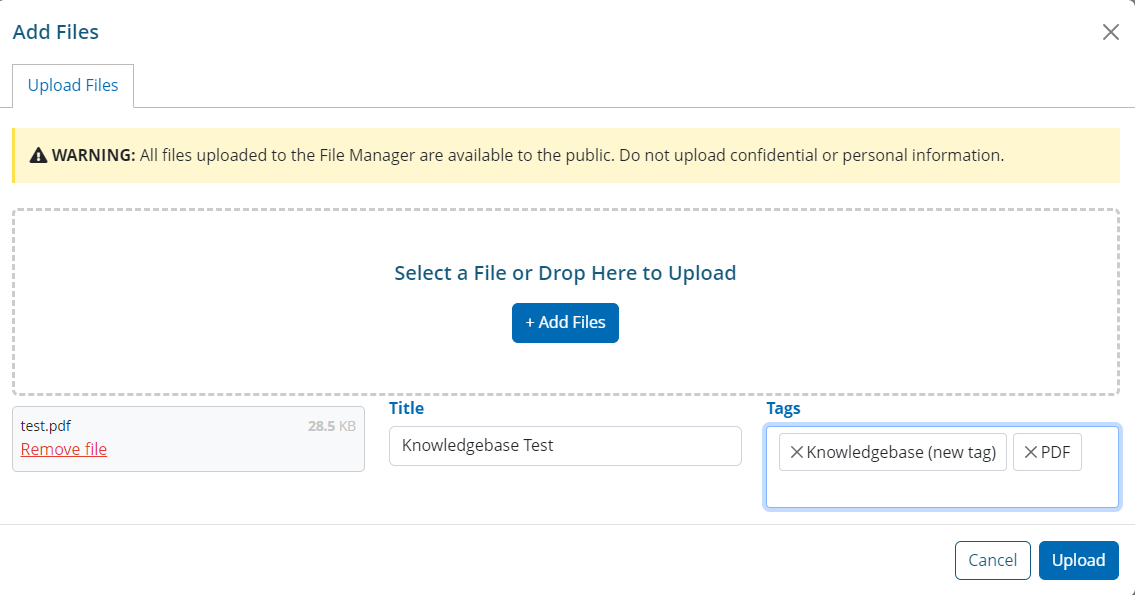
To add a file staff can click the + Add File button located at the top right-hand side of the listings page. An Add Files pop-up modal will appear. Staff can then select a file by clicking the blue + Add Files or simply drag and drop a file.
Once the file has been inputted, staff can enter a Title for the file, and create a new Tag or use an existing one to better help staff search for said file.
Once complete, staff can click Upload to complete the process, or hit Cancel if they no longer wish to upload the file.

Warning: All files uploaded to the File Manager are available to the public. Do not upload confidential or personal information.