
9.3 Email Campaign Summary
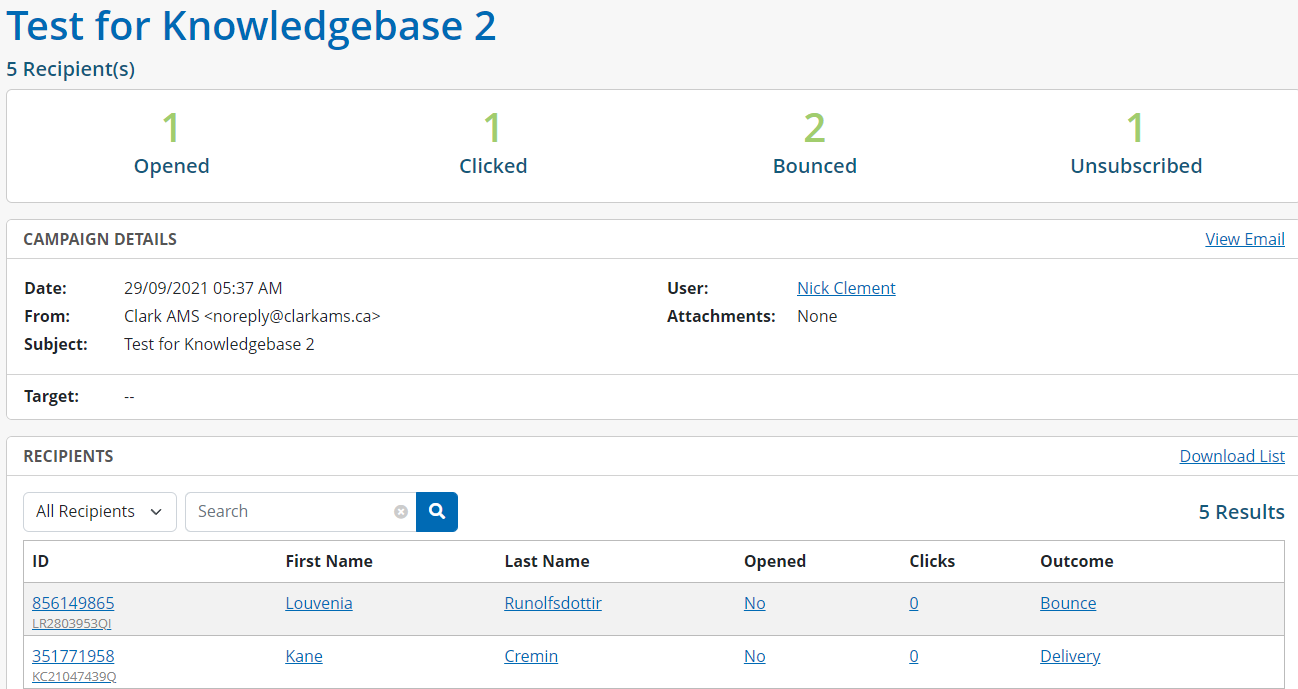
Once an email campaign has been sent, staff can go to the listings page and click the campaign where they will be provided with a summary. Here they will see:
1. The name of the campaign and number of recipients.
2. The client outcome: This includes the number of recipients who opened the email, clicked a link in the email (if any), the number of bounce backs, and the number of clients who unsubscribed after receiving this email.

Note: Clients can unsubscribe from an email by clicking the unsubscribe from future notifications button in the footer of the email received.
Should a client wish to re-subscribe, staff can go into the client’s profile and hover over the Unsubscribed button, located underneath their email address which will become a highlighted Subscribe.

3. The campaign details: This includes the date sent, from email address, subject line, the user who sent the email, and any attachments. If staff wish to see a preview of the email sent they can click View Email.
4. A list of recipients of the campaign: This includes their ID, first name, last name, if they opened the email, if they clicked a link in the email (if any), and the outcome.
Staff can filter this list by outcome, or search for a full or partial client name. They can also download an Excel copy of the list by clicking Download List.