9.1 Email Campaigns List

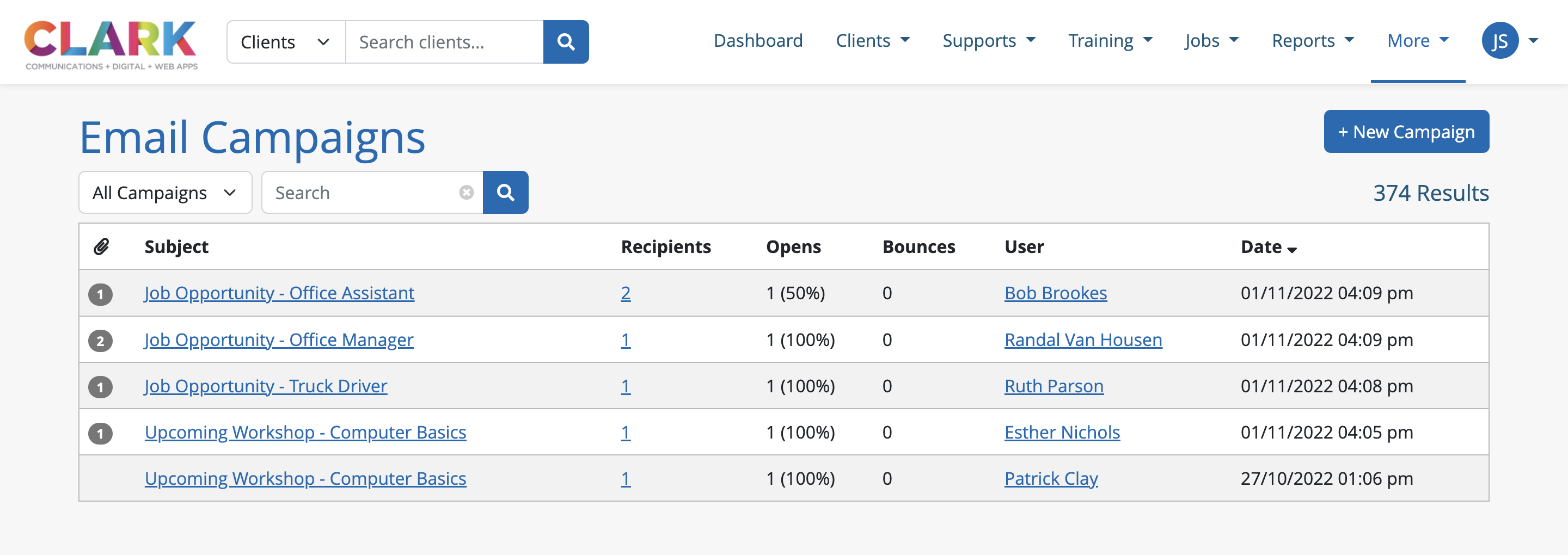
Staff can create an email campaign by clicking the More button in the navigation menu. Here they will see Email Campaigns. This will direct them to the email campaigns listings page.
Within the listings page, staff can filter the list via All Campaigns sent, or just their own via My Campaigns. They can also use the keyword search to find the subject line of a specific campaign or search for the user who sent the campaign.
For each campaign sent, staff will be able to see the following information:
The number of attachments sent (if any)
The subject line of the campaign
The number of recipients it was sent to
The staff user who sent the campaign
The date and time stamp of when it was sent
Staff can click the Subject or Recipients number to be directed to the campaign summary page, or click the User name to be directed to that users profile page.