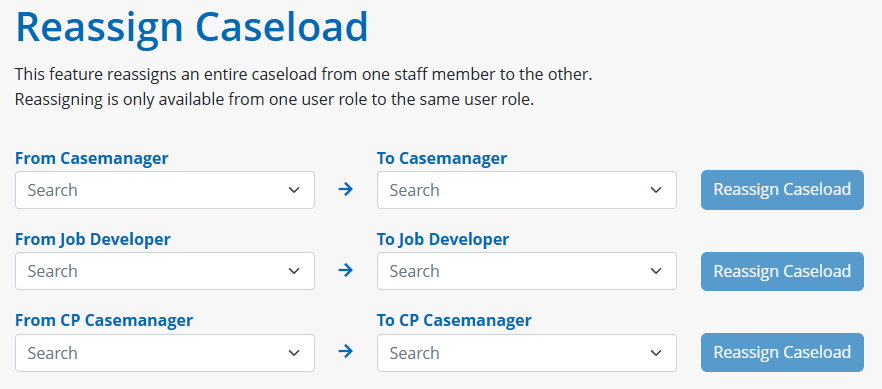
8.5 Reassign Caseload
Administrators have the ability to reassign entire caseloads from one staff member to another active staff member based on user group.

Reassigning is only available from one user role to the same user role.
Once the user groups has been determined, reassigning staff can be completed in 3 easy steps:
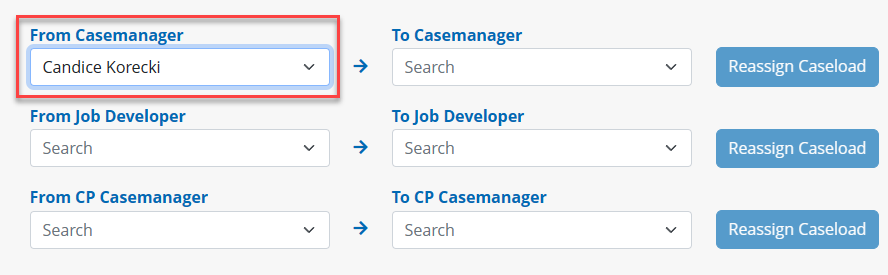
Step 1: Choose a ‘From’ Staff Member
The From list will include all active and inactive staff for the specified user role, in the instance that you are looking to transfer clients from an already inactive staff account.
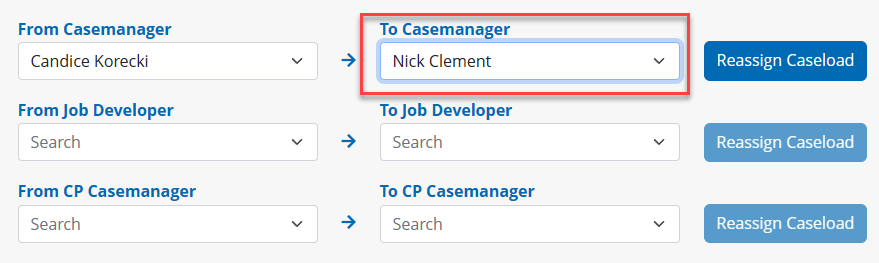
In the example to the right, the admin has chosen Candice, an inactive Casemanager who I wish to transfer all clients from.
Step 2: Choose a ‘To’ Staff Member
The To list will include only active staff for the specified user role.
In the example to the right, the admin has chosen to transfer all of Candice’s clients to Nick.
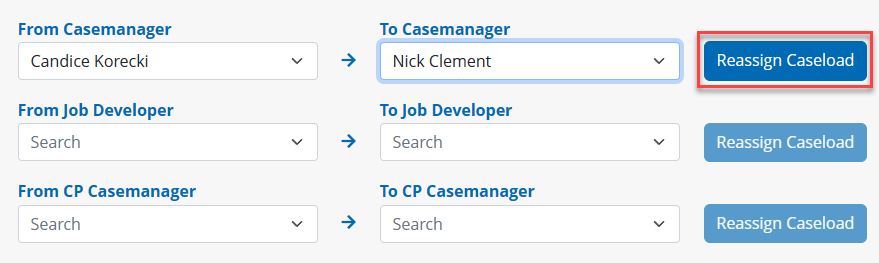
Step 3: Confirm the Reassignment
Once From and To staff have been selected the REASSIGN CASELOAD button will become active.
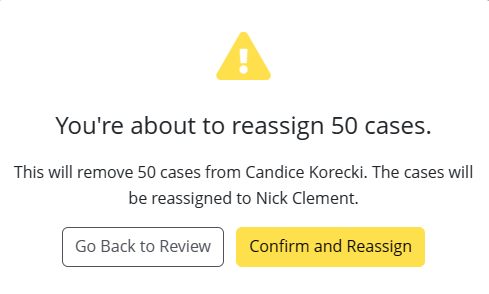
When clicked a pop-up modal will appear requesting the admin to confirm the reassignment. Admins can GO BACK TO REVIEW to review the staff chosen, or click CONFIRM AND REASSIGNto complete the reassignment.
Once confirmed a success modal will appear confirming the number of cases transferred. Admins can click OKAY, THANKS! to remain on the reassignment page or click VIEW CASES to be brought to the advanced search with the staff’s criteria pre-populated.