
6.3 Job Profile
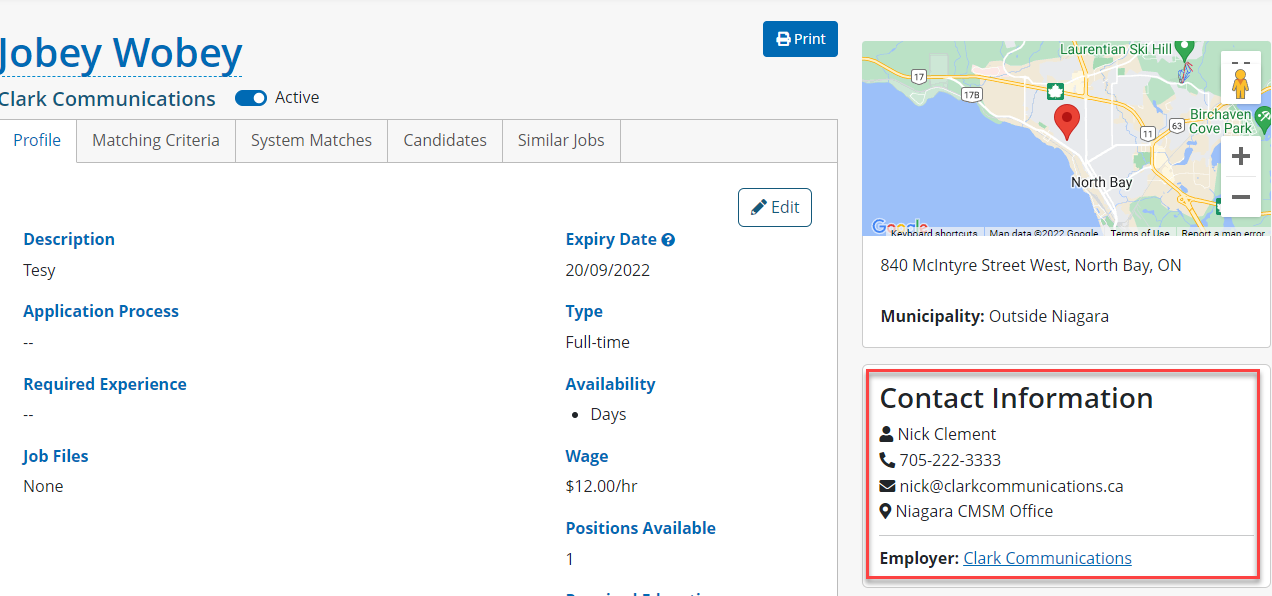
When a job is created in the system, users can view the details, and depending on permissions, edit the fields of the job profile.
The Contact Information for the Job Developer managing this job post will be displayed, including the Employer offering the job, which links to the Employer’s Profile.
If there is no Job Developer attached to a job, users will see a Not Assigned icon displayed on the Job Profile. This can also be found on the Job List page, and under the Casemanager and Job Developer Dashboards.
A Similar Jobs widget will also appear underneath the Contact Information that displays other related jobs, based on the NOC codes set for the Industry field.
6.3.1 Matching Criteria tab
This tab is where users can add specific matching criteria for job posts, based on a number of fields found throughout the case profile. The matching criteria is intended to help narrow down the results of the matching engine for jobs, in order to provide better suggestions for clients.
6.3.2 System Matches tab
This tab lists the clients in the system that are recommended for this job, but users can toggle between seeing the clients in their caseload (My Caseload) or the entire caseload (All Clients).
Users can search clients in the list by Member ID, First Name and Last Name, as well as sort by clicking the column headers. The list also indicates if a client is being suggested for this course based on the NOC codes set in Employment tab of their case profile for Employment Experience and/or Employment Interest.
The list also displays indicators that relate to the client in terms of training, certifications or other case notices:
Icon | Description |
|---|---|
 | Training Suggested |
 | Certification Required |
 | Deferral |
 | Restriction |
Similar to assigning job statuses in the client’s Employment tab, users can also assign statuses to clients in the System Matches tab of a job post:
6.3.3 Candidates tab
This tab lists all clients that have a current status for the job post, and users can toggle between seeing the clients in their caseload (My Caseload) or the entire caseload (All Clients).
Users can search clients by Member ID, First Name and Last Name, as well as sort by clicking the column headers. Users can also Filter by State, to see clients that have a specific status set for the job post.
Similar to setting a status in the System Matches tab, users can select one or multiple clients and apply a job status at once. Users can also click on the Status link, select the new status from the list and apply the change by clicking the blue checkmark.
Depending on permissions, some users may be able to remove a status for a client, which will:
Move the client(s) back to the System Matches tab of the job profile
Remove the job post from Job Management widget in the case profile
Clients can also be emailed from the Candidates tab of a job post, by selecting the checkboxes beside the client Member ID and then clicking the Email Clients (Selected) button. When emailing clients directly from the job post, the body of the email message will automatically be populated with information about the job post.

If the Email Clients button is clicked without selecting any clients, all clients in the Candidates will be added to the email.
6.3.4 Similar Jobs tab
This tab lists all active job opportunities in the system that are similar to this job post, based on the NOC codes set for the Industry field.
Ordered in alphabetical order based on the job title, users can see the company name and location, as well as the Job Developer managing the job and when the job was posted in the system.