
6.2 Add New Job
Tutorial Video: How to add a new job.
Step 1 – Job Description
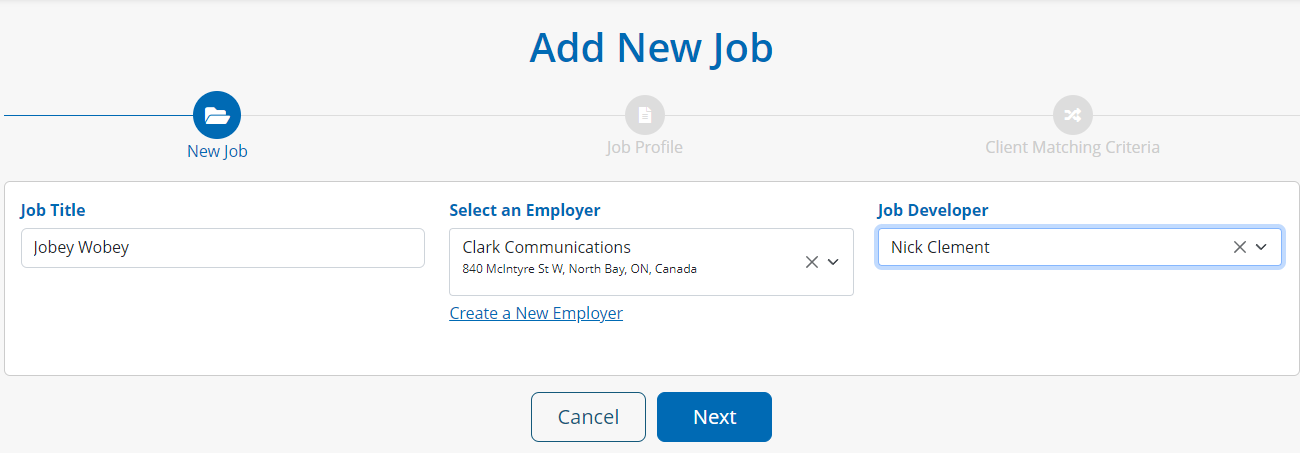
Depending on permissions, users may be able to create new jobs by clicking Jobs in the navigation, then selecting Add New from the menu. Users will then be walked through a step-by-step wizard to create a new job in the system.
When creating a new job, users must input the Job Title and indicate the Employer and Job Developer for this new job post before progressing to the next step.

Jobs must be attached to an Employer. If the employer does not appear in the list, they can be added through the Create a New Employer link
Step 2 – Job Profile
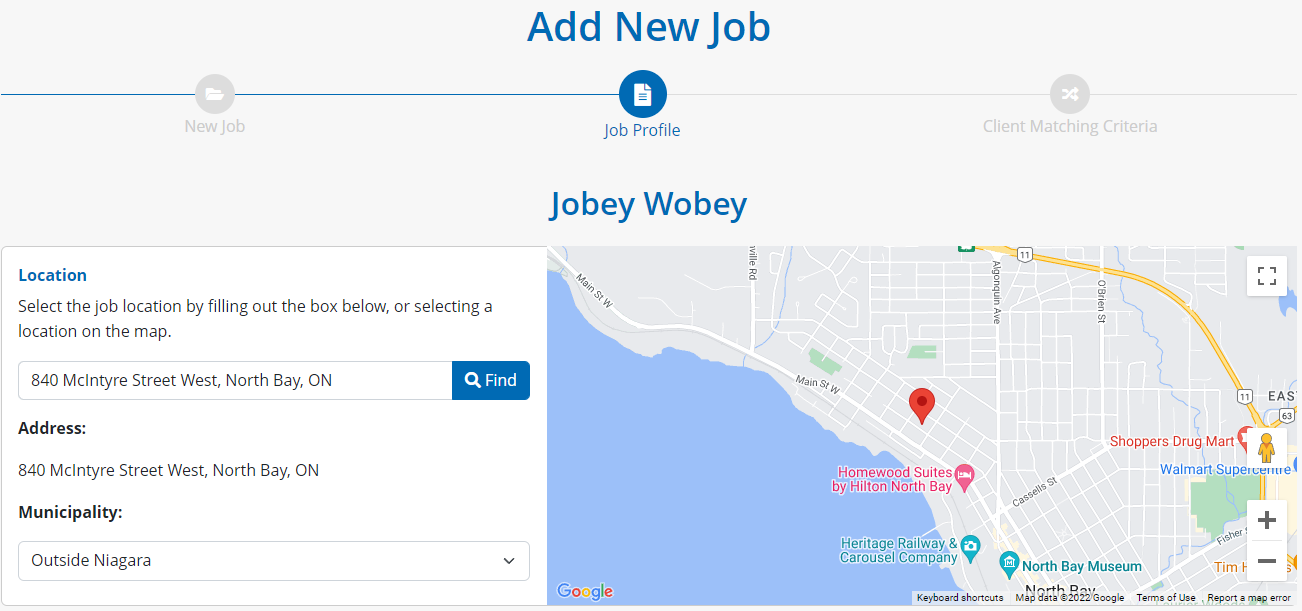
The Location field is powered by Google, so users can search a full or partial address, city or town, and the system will suggest possible locations. Once selected, the Google Map will update to the reflect the location selected.
The Municipality field will automatically update based on the address selected, however, users can manually override this suggestion and select from a list of options available.
Staff can then add a Job Description, Application Process, Required Experience, and attach any relevant Job Files.
If an Expiry Date is set, a job will remain in the system but will be automatically changed to Inactive, after this date.
Users can indicate the Type of employment (i.e., Full time, part time, etc.) Availability required, Wage per hour, Positions Available, Required Education level, Suggested Training, based on courses in the system, and job Industry.
Positions Available for this job is tracked dynamically in the system – As clients are hired for this job, the number of positions available will decrease. When the number of positions reaches zero (0), the job post will remain in the system and automatically change to Inactive, so clients are not matched for a job that no longer has available positions.

Instead of re-creating a job post, users can update the Expiry Date and Positions Available of an older job to make it Active and start matching to clients in the database.
Step 3 – Client Matching Criteria
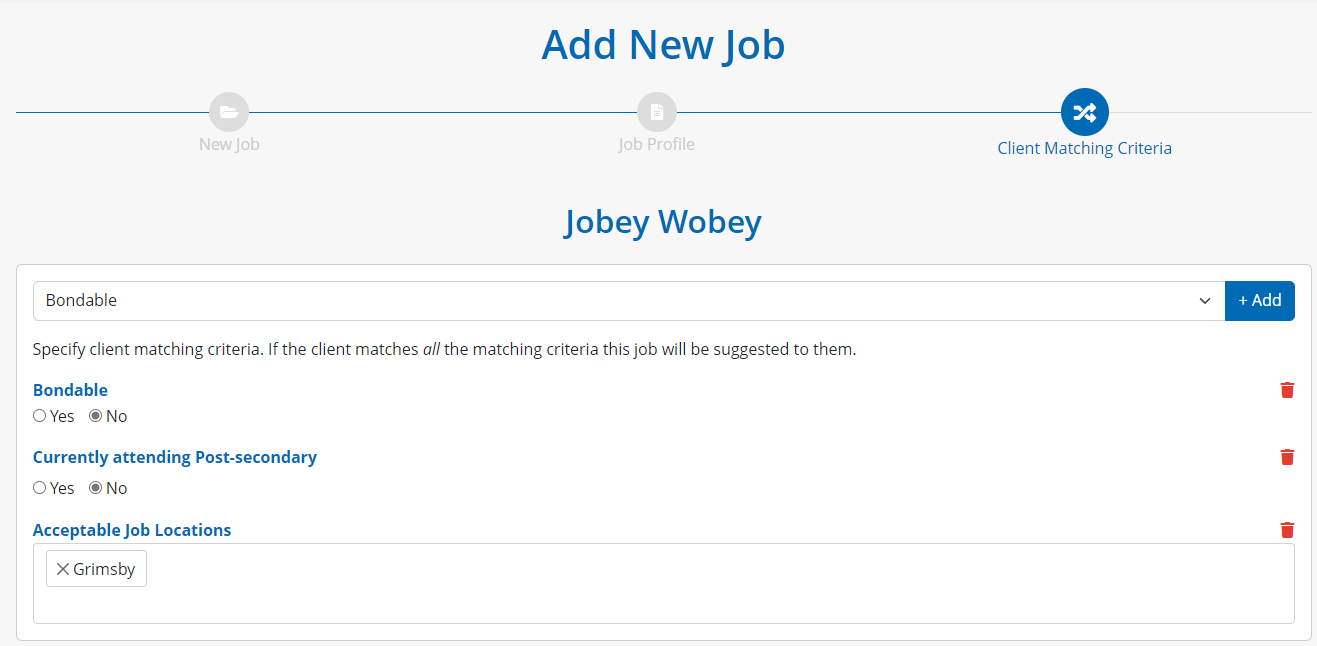
Once details of a job post are populated, users can click the button to add Matching Criteria specific to this job, which is based on fields found throughout the case profile.
Additionally, the system’s matching engine also takes into account the following when matching clients to job opportunities;
A job must be active to match to a client
A client will not be matched if they have a current status for the same job post