
5.2 Add New Training Course
Tutorial Video: How to add a training course
Add New Training Wizard
Depending on permissions, users can add new training courses to the application by clicking Training in the navigation, then selecting Add New from the menu.
Users will then be re-directed to the Add New Training form.
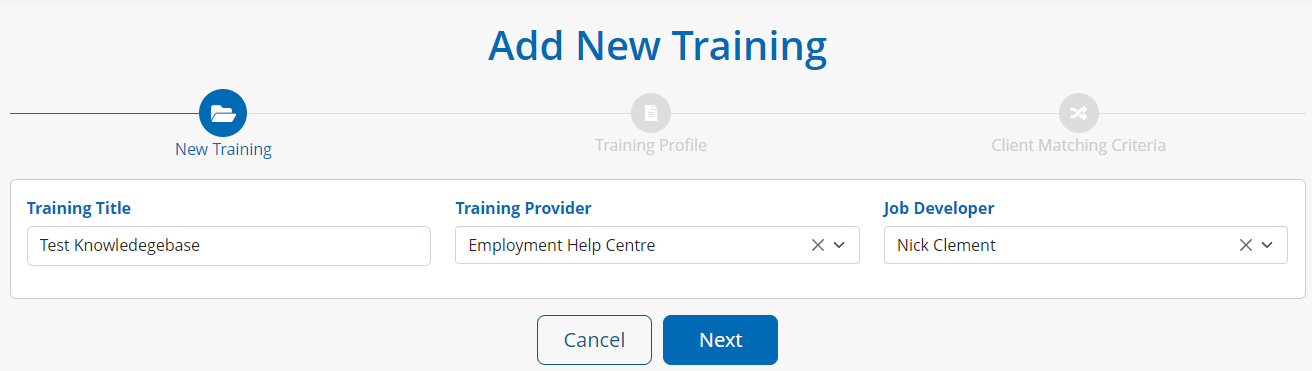
New Training Details
Staff will be first required to input a title for the training course, choose a training provider based off providers created in the tool, and choose a job developer.

Note: Administrators can setup Training Providers through the Providers listings page
Training Profile
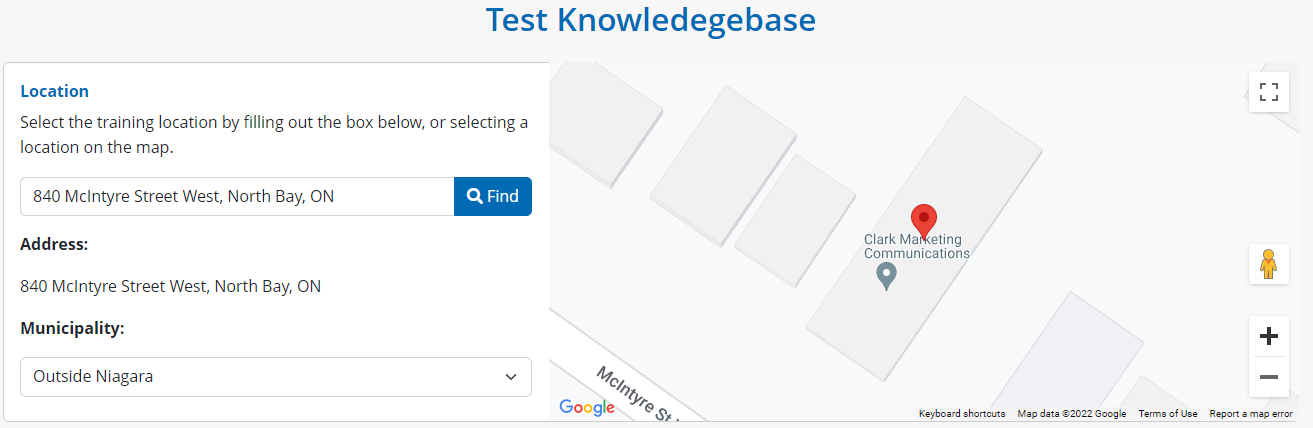
Next, staff will be required to create the training profile. First is the Location field. Powered by Google, users can search a full or partial address, city or town, and the system will suggest possible locations. Once selected, the Google Map will update to the reflect the location selected.
The Municipality field will automatically update based on the address selected, however, users can manually override this suggestion and select from a list of options available.
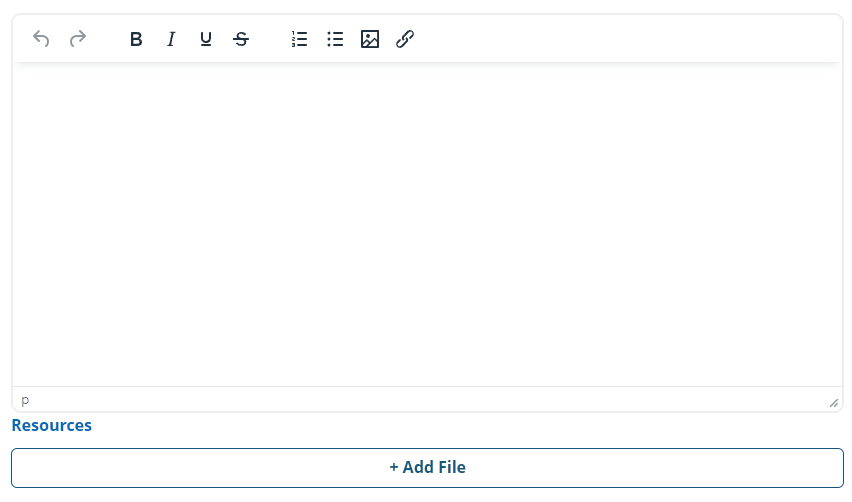
Users can then complete a description of the course and add any relevant resources, such as training manuals, brochures, etc.
Next, staff can also add a cost, if there is one associated to the course, and add session dates. Users can create multiple session dates by using the +Add button under the session dates field, should the course be ongoing.
The cost field is only visible to the Administrator, Director and Manager user groups.
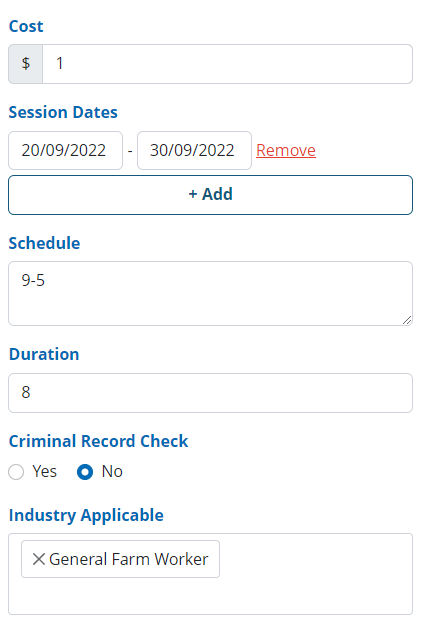
From here staff can provide a schedule of events and provide a duration for each day. They can also select if a criminal record check is required to participate in the course, and what applicable industries the course is relevant to.
If the Session Dates start date is more than 10 weeks into the future, the status of the course will be considered inactive and therefore not show on the active Training List. It will automatically set to active at the 10-week mark.
Adding an applicable industry helps populate the jobs tab of the training course
Client Matching Criteria
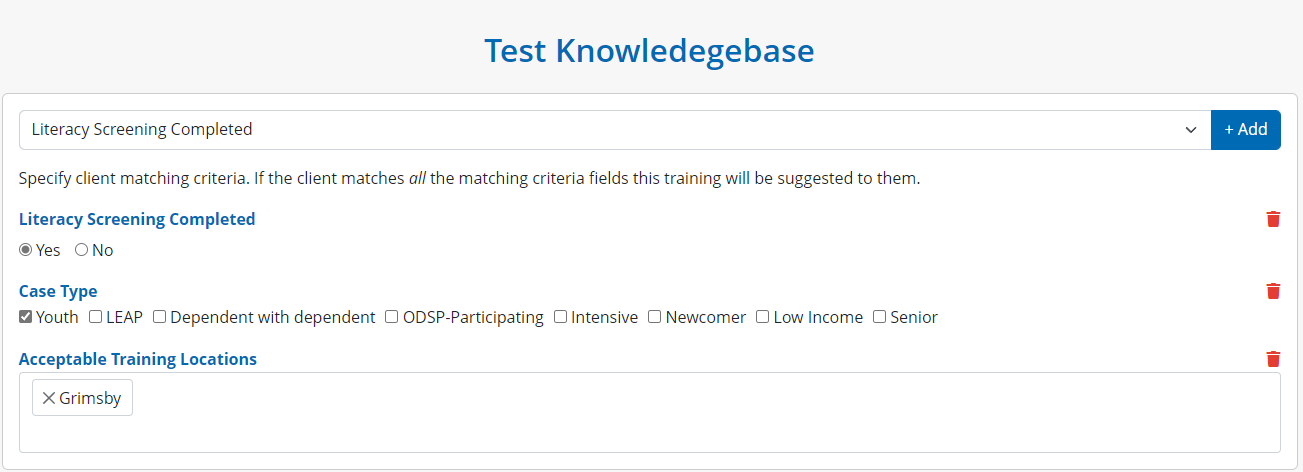
Once details of a training course are populated, users can click the Next button to add Matching Criteria specific to this course, which is based on fields found throughout the case profile.
Additionally, the system’s matching engine also takes the following into account when matching clients to training courses;
A course must be active to match to a client
Clients will not be matched if they have already obtained the same training
Clients will not be matched if they have a current status for the same training
Clients will be matched with the session date’s availability, if:
Today’s date is within the session range
Today’s date is not more than three (3) days into the start of a session
Clients will only be matched with sessions starting in the next 90 days