
1.0 By-Name List Overview & Functionality
1.1 Adding BNL Status to a Client
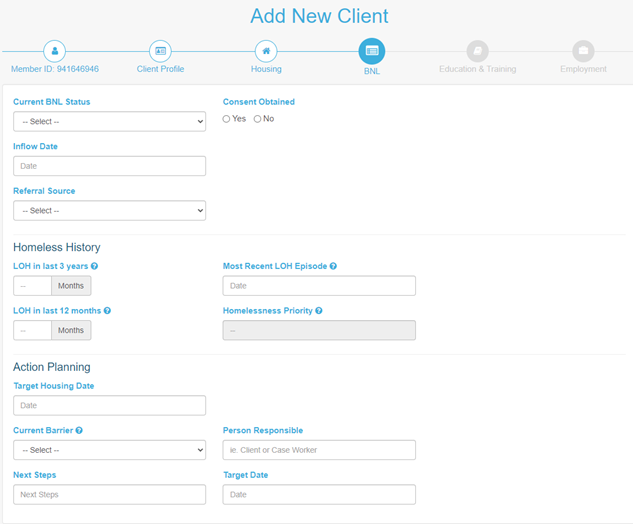
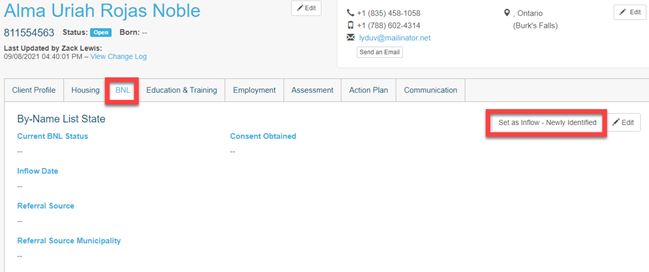
Staff can add BNL Status to a client in one of two ways:
By creating a new client, and filling out the BNL information.
2. Within an existing client profile, by going to the BNL tab and clicking Set as Inflow – Newly Identified
1.2 Setting By-Name List Status & State
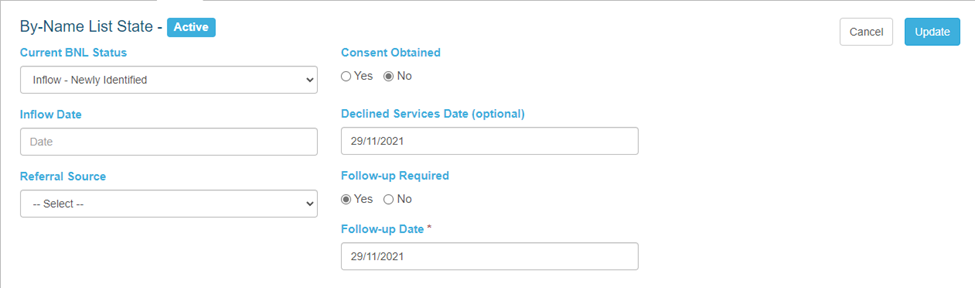
The first section of the BNL tab is the By-Name List status and state. This section establishes whether the client is in the process of entering the program, is returning to the program, or is exiting the program.
A Consent Obtained field is also indicated for any status set. Should the client deny consent, staff have the option to indicate a declined services date.
The following statuses can be captured:
Inflow – Newly Identified
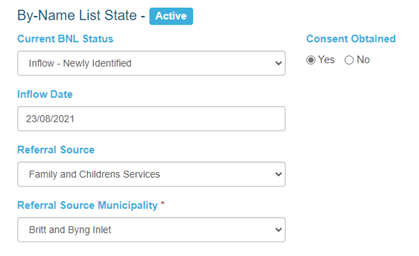
When a client is entering the program for the first time, the BNL status can be set to Inflow – Newly Identified. Here staff can enter the inflow date via a pop-up calendar modal, choose from a drop-down list of referral sources, and choose the referral source municipality from a drop-down list.
Once updated, the BNL state will be set to ACTIVE.
Inflow – Returned from Housing
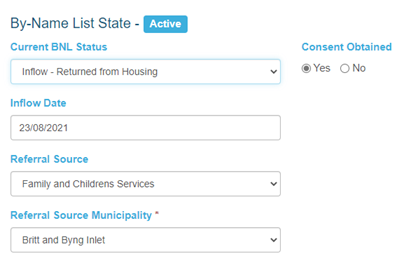
When a client is returning to the program after being previously housed, the BNL status can be set to Inflow – Returned from Housing. Staff can enter the inflow date via a pop-up calendar modal, choose from a drop-down list of referral sources, and choose the referral source municipality from a drop-down list.
Once updated, the BNL state will be set to ACTIVE
Inflow – Returned from Housing
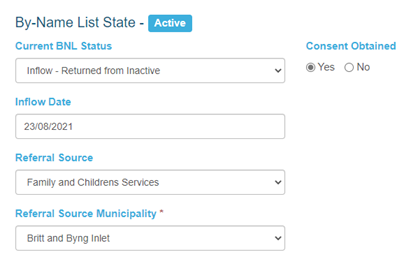
When a client is returning to the program after being inactive for a period of time, the BNL status can be set to Inflow – Returned from Inactive. Staff can enter the inflow date via a pop-up calendar modal, choose from a drop-down list of referral sources, and choose the referral source municipality from a drop-down list.
Once updated, the BNL state will be set to ACTIVE .

Special Note: Setting a Follow-Up date for inflow clients
For all Inflow status types, staff can also indicate if a follow-up is required with the client. If Yes is selected staff can input a date.
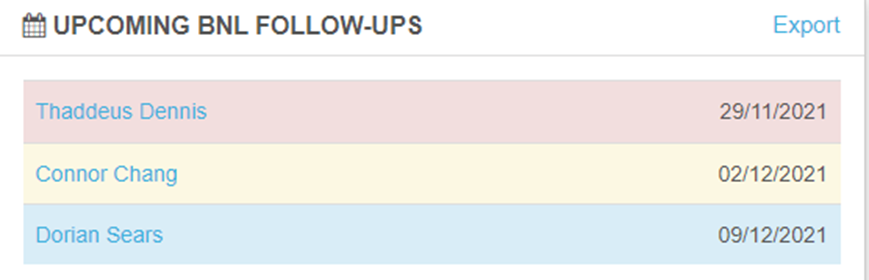
On the client profile tab and on the staff dashboard, a BNL Follow-Up indicator has been created with a colour warning system:
Red (Overdue): Any follow-up date that is set to the current date, or is past the current date.
Yellow (Warning): Any follow-up date that is 1-5 calendar days away.
Blue (Notice): Any follow-up date that is 6-10 calendar days away.
Outflow – Moved to Inactive
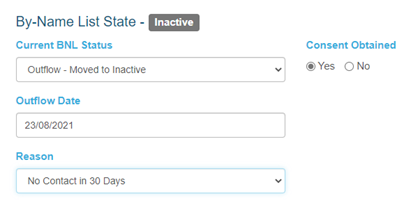
When the client has been inactive for a period of time, the BNL status can be set to Outflow – Moved to Inactive. Staff can enter the outflow date via a pop-up calendar modal and choose an outflow reason from a drop-down list.
Once updated, the BNL state will be set to INACTIVE
Outflow – Housed
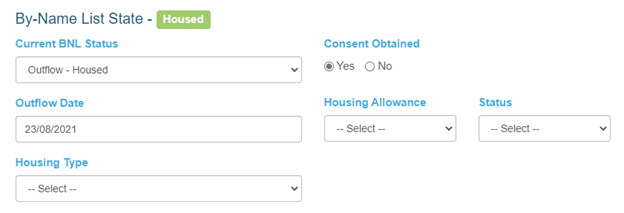
When the client has successfully found housing, the BNL status can be set to Outflow – Housed. Staff can enter the outflow date via a pop-up calendar modal and choose the Housing Type from a drop-down list.
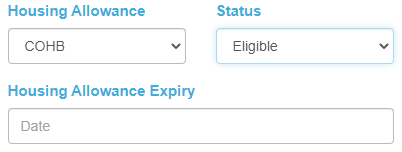
Staff can also track the clients housing allowance and housing allowance status. Should the client be deemed eligible for a housing allowance, the housing allowance expiry field will appear, allowing staff to select an expiry date via pop-up calendar modal.
Once updated, the BNL state will be set to HOUSED.
1.3 Homeless History
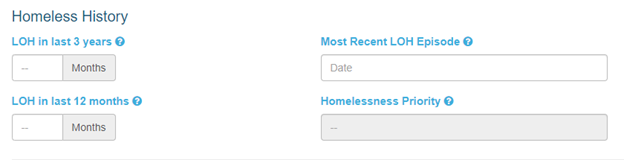
The second section of the BNL tab is Homeless History. This section is to assist with determining the homelessness priority of the client, based on their length on housing (LOH) at various times in their life.
To calculate the client’s homelessness priority staff must include the following:
The number of months of the previous length on housing over the last 3 years, excluding the current episode.
The number of months of the previous length on housing over the last 12 months (year), excluding the current episode.
The calendar date of the most recent length on housing episode.
Based on an internal calculation the Homeless Priority will be set to Chronic, Approaching Chronic or Temporary. The calculations are as follows:
If (LOH in last 3 years) + (Most Recent LOH Episode) = 18 months, the priority will be set as Chronic
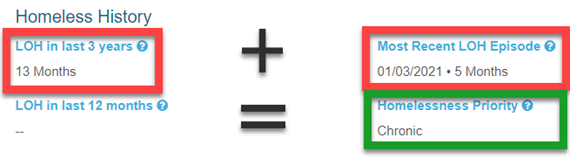
(LOH in last 12 months) + (Most Recent LOH Episode) = 6 months or more, the priority will be set as Chronic
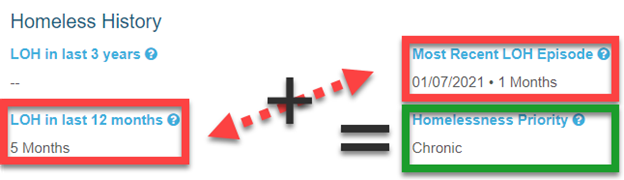
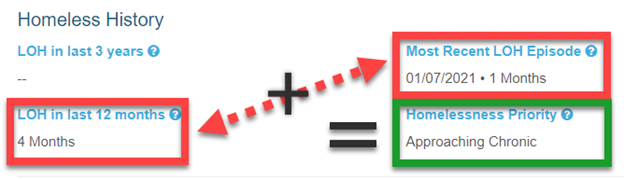
If (LOH in last 12 months) + (Most Recent LOH Episode) = 5 months or less, the priority will be set as Approaching Chronic
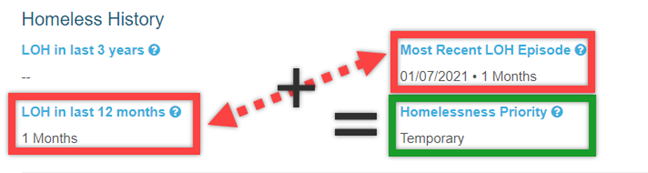
If none of the above is met, the priority will be set as Temporary
If nothing is populated, these fields will be set as “- -”
1.4 Action Planning
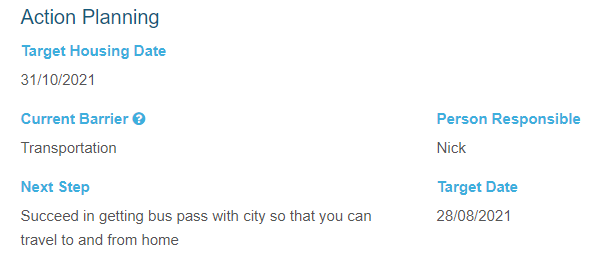
The third section of the BNL tab is Action Planning. Here staff can set goals and next steps for the client.
The first, and overarching goal, is the Target Housing Date. Using a calendar modal, staff can set a date goal for when the client to achieve housing.
Staff can set the Current Barrier, from a drop-down list of options. This is the major challenge the client is facing in advancing through the housing process. The person responsible is the individual assisting in overcoming this barrier.
Next step is an open text field where staff can provide detailed notes about what is required to overcome the current barrier.
Lastly, the target date is the date in which staff wish for the client to overcome the current barrier. Using a calendar modal, staff can set a date to achieve this goal.
1.5 History of BNL Status
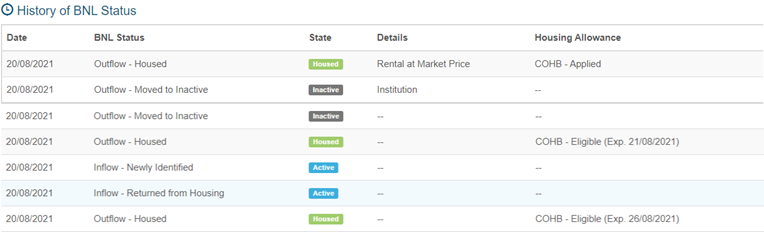
The final section of the tab is the History of BNL Status. Here staff will be provided with high level, at-a-glance information about the client. This includes:
The update date of the BNL Status
The BNL Status the client changed to
The state of the client at that time
The details of their inflow, inactive, or housed status
The housing allowance the client received, and expiry (applies to Housed state only)